
Insert and format a table
Tables keep lists, schedules and price lists in neat rows and columns. When you select a table, two tabs open on the ribbon: Table Design for fill and borders, and Table Layout for rows, columns and size.
Insert a table
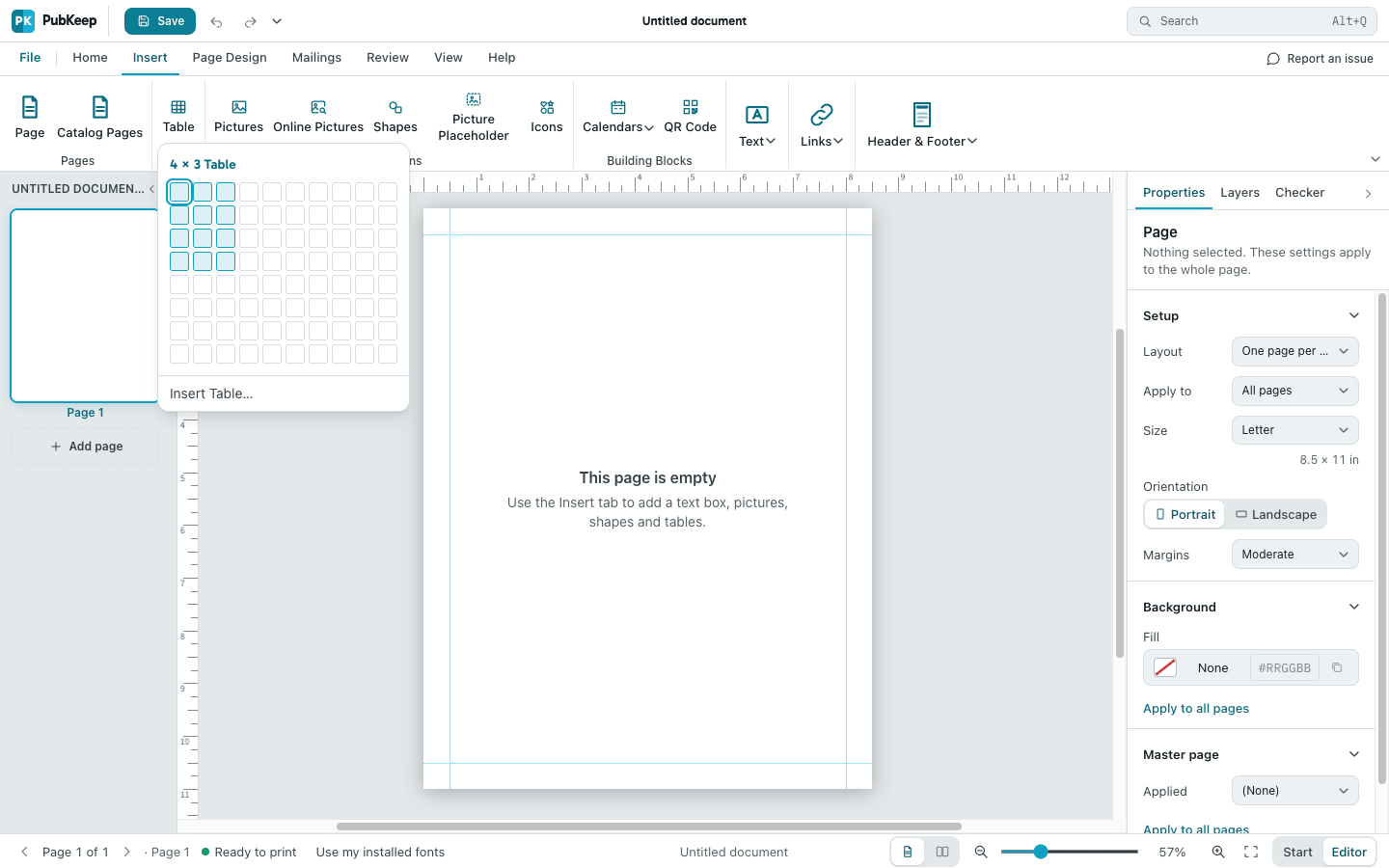
Section titled “Insert a table”- Click the Insert tab, then click Table.
- Move the pointer across the grid until it shows the number of rows and columns you want, then click.
For a larger table, click Insert Table… under the grid, type the Number of rows and Number of columns, and click OK.
The table goes in the middle of the page with your cursor in the first cell, so you can start typing.
Type in the cells
Section titled “Type in the cells”- Click in a cell and type.
- Press Tab to move to the next cell, and Shift+Tab to move back.
- Press Tab in the last cell to add a new row at the bottom.
- To type a tab inside a cell, press Ctrl+Tab (Option+Tab on a Mac).
New tables have light gray gridlines on screen so you can see the cells. The gridlines don’t print. To print lines around the cells, add borders.
Select cells, rows and columns
Section titled “Select cells, rows and columns”- To select one cell, click in it. To select several, drag across them.
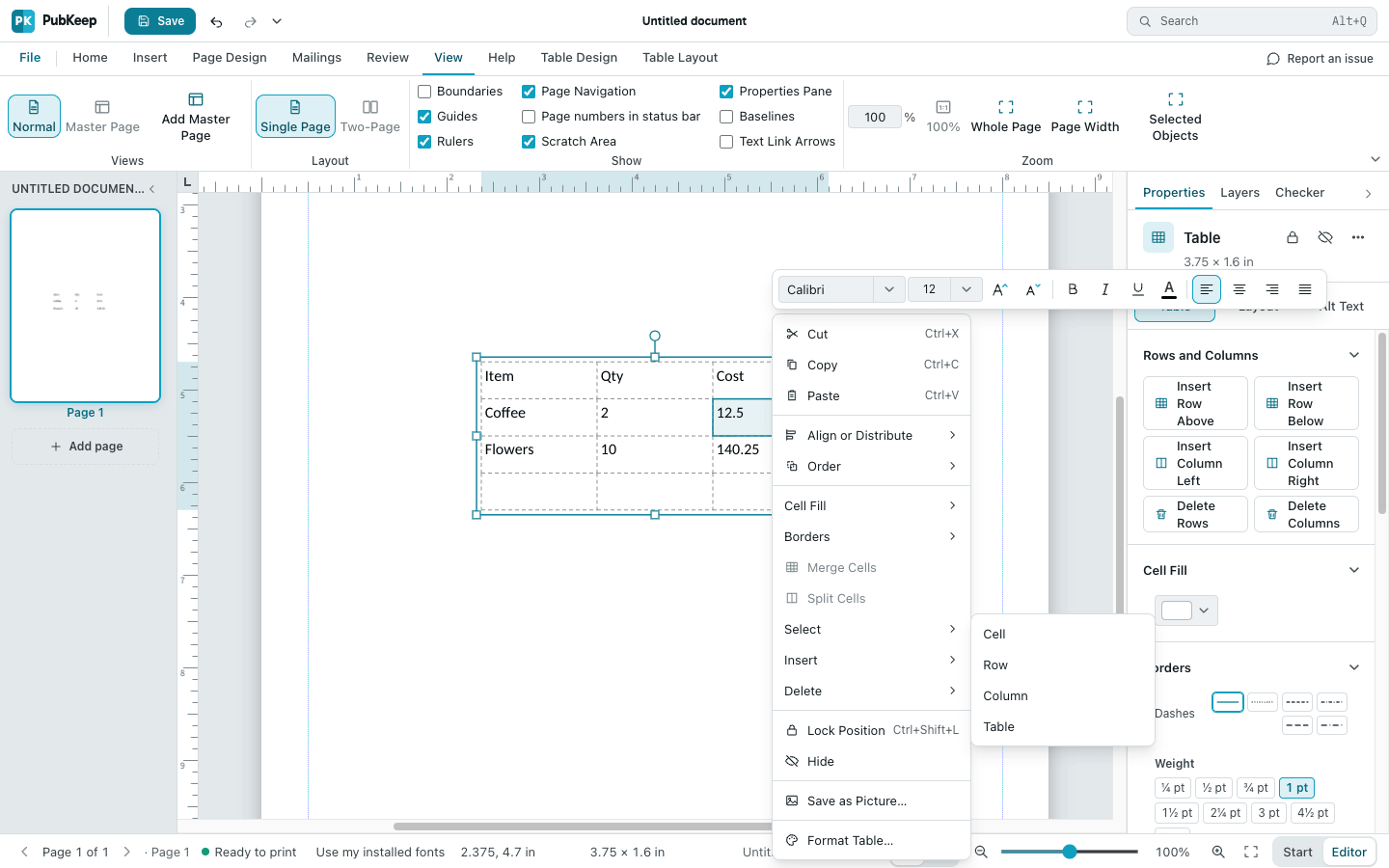
- To select a row, a column or the whole table, right-click a cell, point to Select, and click Cell, Row, Column or Table.
Line up numbers on the decimal point
Section titled “Line up numbers on the decimal point”A decimal tab stop lines up prices and other amounts on the period.
- Right-click a cell in the column of numbers, point to Select, and click Column.
- Click the Home tab. In the Paragraph group, click the small arrow in the bottom right corner.
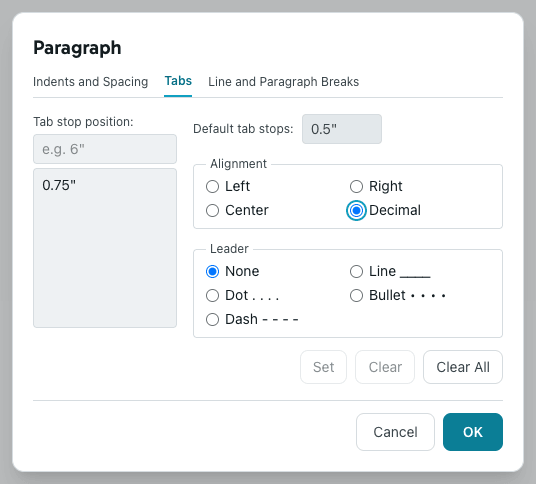
- Click the Tabs tab.
- Under Tab stop position:, type where the decimal point should go, for example 0.75”.
- Under Alignment, click Decimal. Click Set, then click OK.
- Click just before each number and press Ctrl+Tab (Option+Tab on a Mac). The number moves over so its period lines up with the others.
Shade cells
Section titled “Shade cells”- Select the cells, row or column you want to shade.
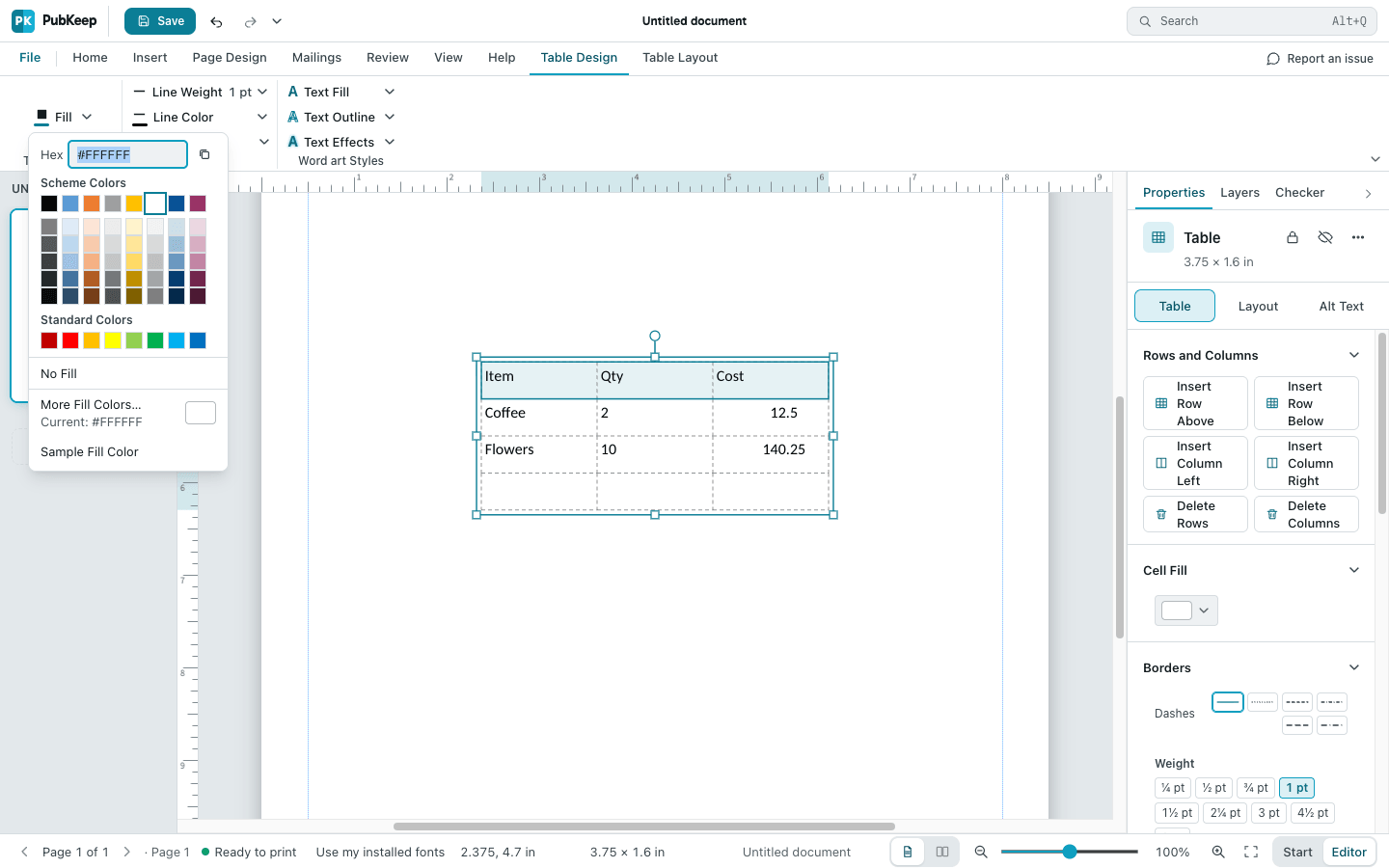
- Click the Table Design tab, then click the arrow next to Fill.
- Click a color. For a color that isn’t shown, click More Fill Colors…. To remove the shading, click No Fill.
You can also right-click the cells and point to Cell Fill.
Add borders
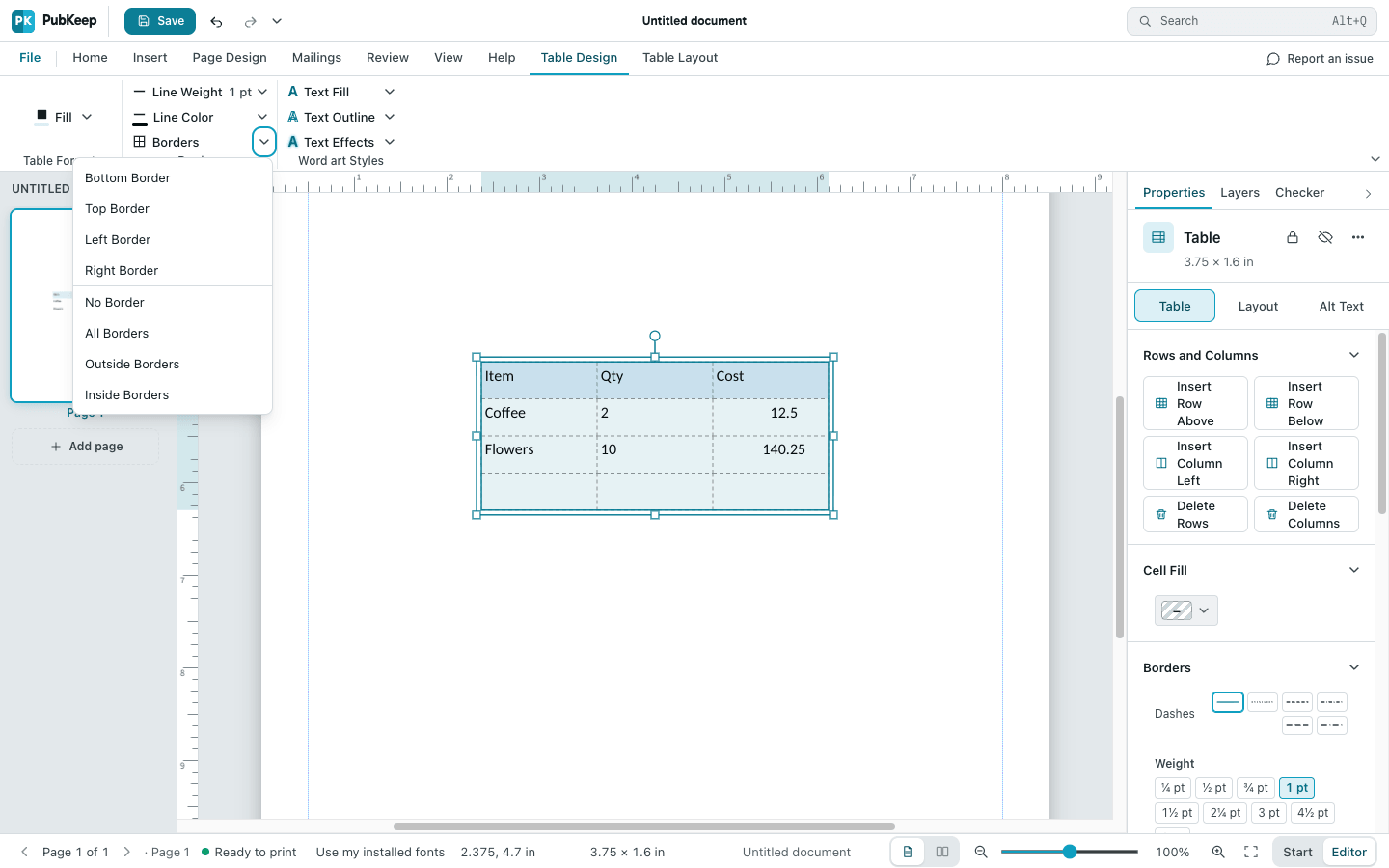
Section titled “Add borders”- Select the cells, or select the whole table.
- On the Table Design tab, pick a Line Weight and a Line Color first.
- Click the arrow next to Borders and choose where the lines go, such as All Borders, Outside Borders or Inside Borders. No Border takes them away.
Add or delete rows and columns
Section titled “Add or delete rows and columns”Click a cell, then click the Table Layout tab:
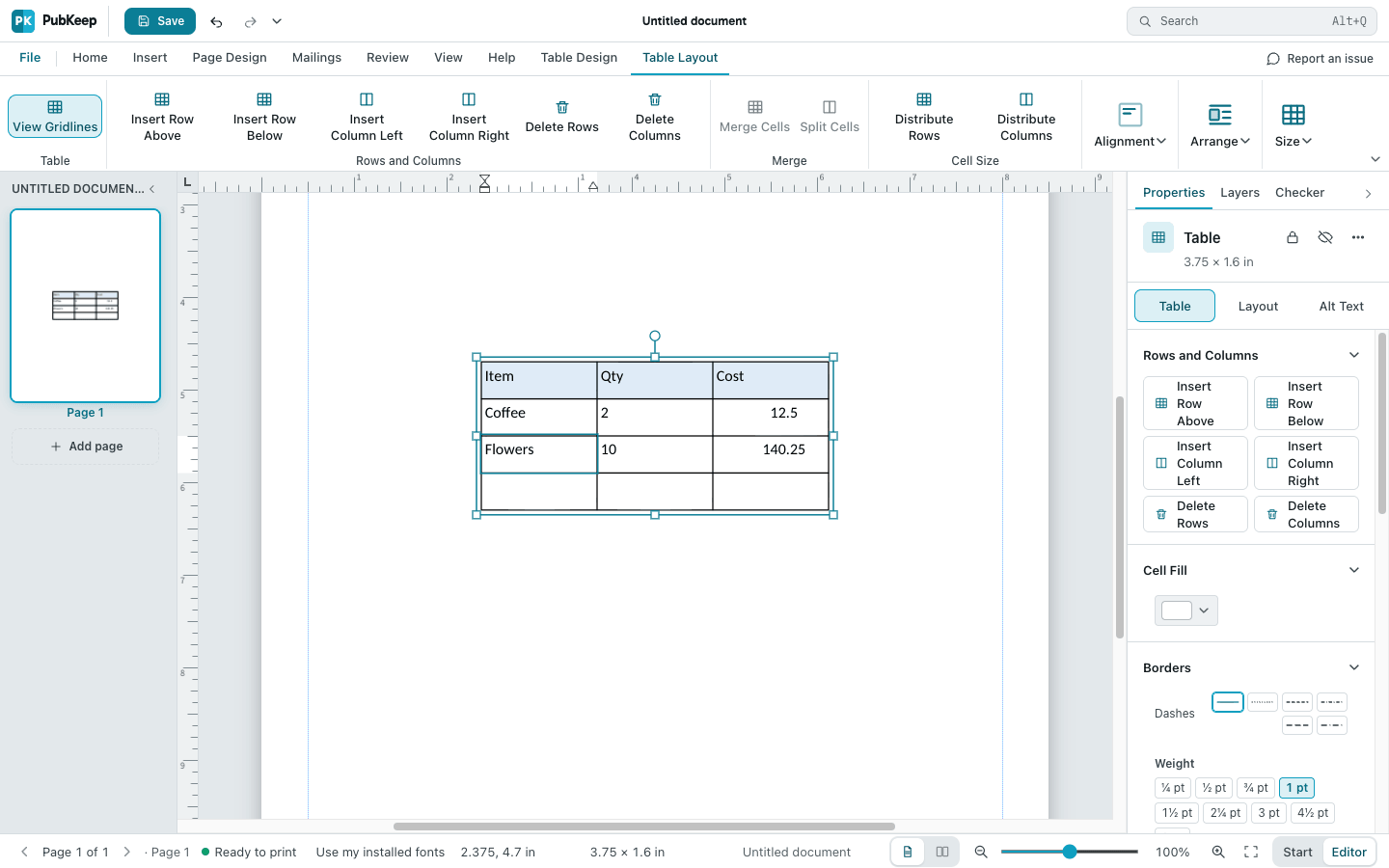
- Insert Row Above or Insert Row Below adds a row.
- Insert Column Left or Insert Column Right adds a column.
- Delete Rows or Delete Columns removes the row or column you’re in.
The same commands are on the right-click menu under Insert and Delete.
Merge and split cells
Section titled “Merge and split cells”- Drag across the cells you want to join into one.
- On the Table Layout tab, click Merge Cells.
To divide a merged cell again, click it and then click Split Cells.
Resize the table, rows and columns
Section titled “Resize the table, rows and columns”- Drag the line between two columns to make a column wider or narrower. The table grows or shrinks with it.
- Hold Shift while you drag a column line to make one column wider and the next one narrower. The table stays the same width.
- Drag the line between two rows to make a row taller or shorter.
- To set an exact size, click Size on the Table Layout tab and type the Height or Width.
- Distribute Rows makes the selected rows the same height. Distribute Columns makes the selected columns the same width.
If it still looks wrong
Section titled “If it still looks wrong”My table has no lines when I print
Section titled “My table has no lines when I print”New tables have no borders. The gray gridlines only show on screen. Select the table and add borders.
Tab moves to the next cell instead of making a tab
Section titled “Tab moves to the next cell instead of making a tab”That’s what Tab does in a table. Press Ctrl+Tab instead (Option+Tab on a Mac). In a web browser on Windows, Ctrl+Tab switches browser tabs, so use the PubKeep desktop app for tabs inside cells.
I want to remove the whole table
Section titled “I want to remove the whole table”Right-click a cell, point to Delete, and click Delete Table.