
How do I put my pages in a different order?
If your pages are in the wrong order, you can drag them into place or move them with a command.
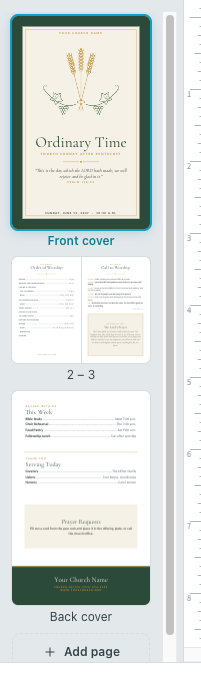
Drag a page in the Pages pane
Section titled “Drag a page in the Pages pane”- Find the page thumbnails in the Pages pane on the left side of the window.
- Press and hold on the page you want to move.
- Drag it up or down to its new spot. If the spot is out of view, hold the page near the top or bottom of the pane and the list scrolls for you.
- Let go of the mouse button.
To stop a drag partway, press Esc.
Move a page to an exact spot
Section titled “Move a page to an exact spot”- Click the page you want to move, so it’s the current page.
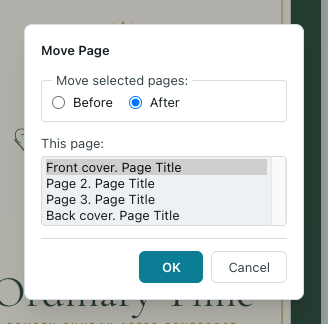
- On the Page Design tab, in the Pages group, click Move…. You can also right-click the page’s thumbnail and choose Move….
- Under Move selected pages:, choose Before or After.
- In the This page: list, click the page it should go next to.
- Click OK.
Move a page one step at a time
Section titled “Move a page one step at a time”Click the page, then on the Page Design tab click Move Up to move it one page earlier, or Move Down to move it one page later. Both are also on the menu when you right-click a page thumbnail.
If it still looks wrong
Section titled “If it still looks wrong”I moved a page and two pages moved
Section titled “I moved a page and two pages moved”When you view pages side by side (View > Two-Page), PubKeep moves the facing pair together. Switch to View > Single Page first to move one page on its own.
I moved the wrong page
Section titled “I moved the wrong page”Press Ctrl+Z (Cmd+Z on a Mac) to undo the move.
My booklet prints in the wrong order
Section titled “My booklet prints in the wrong order”Keep your pages in reading order (cover first). When you print a booklet, PubKeep puts the pages in folding order for you. See Print a booklet or bulletin.