
How do I use master pages?
A master page holds things you want on many pages at once, like a logo, a border, a header or a page number. Anything you put on the master shows on every page that uses it, and you change it in one place.
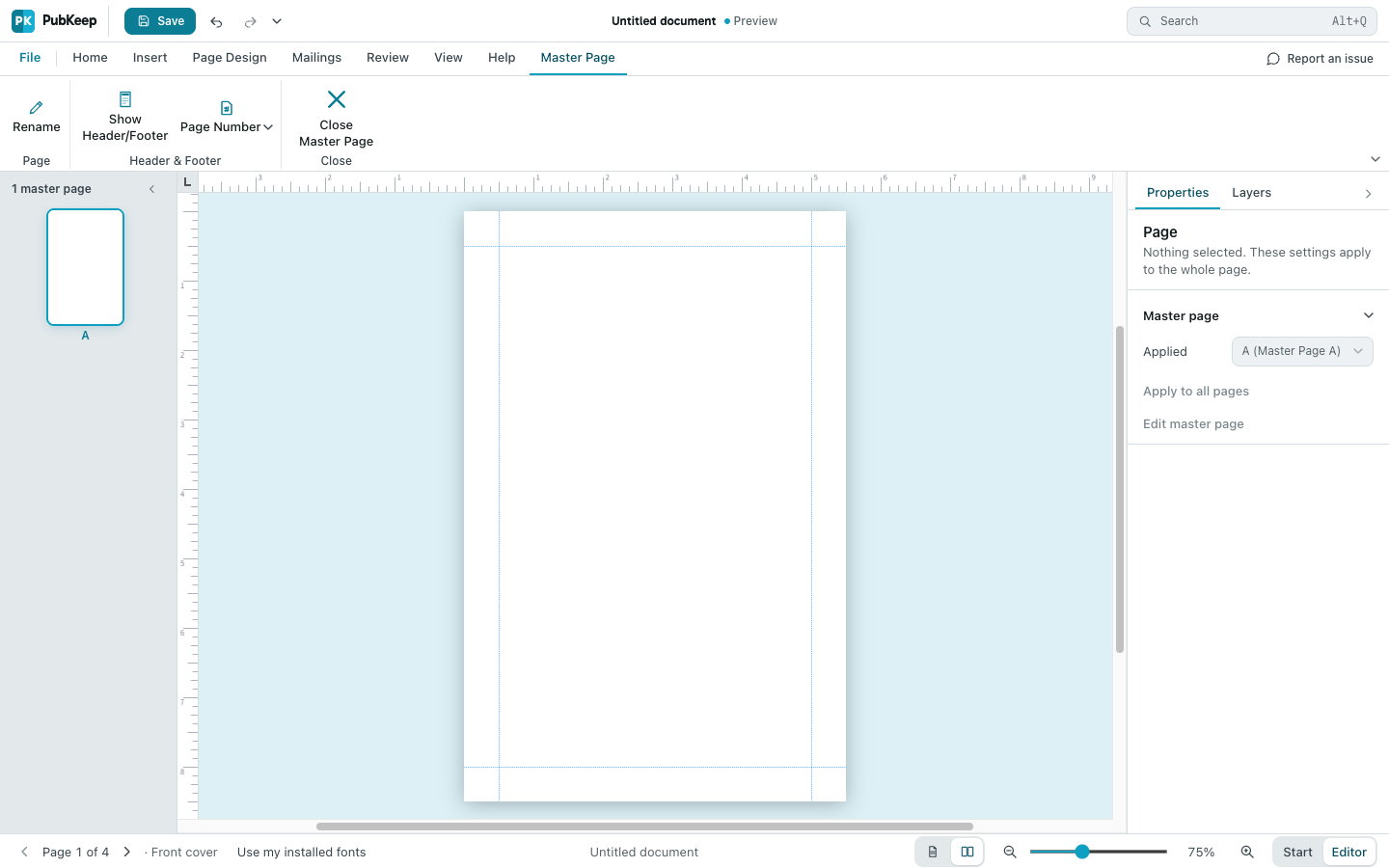
Edit a master page
Section titled “Edit a master page”- Go to a page that uses the master.
- On the View tab, click Master Page. The Master Page tab appears on the ribbon.
- Add, change or delete things just as you would on a normal page.
- Click Close Master Page to go back to your pages.
If Master Page is grayed out, the page doesn’t use a master yet. Click Add Master Page on the View tab to create one for this page and start editing it.
Choose which master a page uses
Section titled “Choose which master a page uses”- Go to the page you want to change.
- On the Page Design tab, click Master Pages.
- Click a master to apply it to this page, or click (None) to show no master on this page.
To apply a choice to every page, right-click it in the list and choose Apply to All Pages.
Apply a master to a range of pages
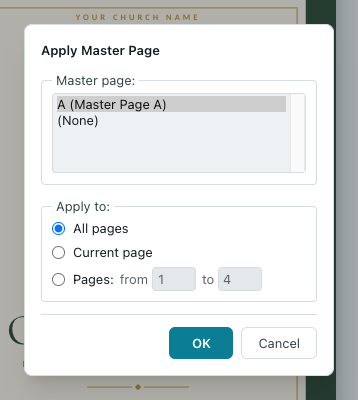
Section titled “Apply a master to a range of pages”- On the Page Design tab, click Master Pages, then Apply Master Page….
- Under Master page:, pick a master or (None).
- Under Apply to:, choose All pages, Current page, or Pages: and type the first and last page.
- Click OK.
You can also do this with nothing selected in the Properties pane. Under Master page, pick a master, then click Apply to all pages if you want it everywhere.
If it still looks wrong
Section titled “If it still looks wrong”I can’t click or select something on my page
Section titled “I can’t click or select something on my page”It’s probably on the master page. Open View > Master Page to change it, or choose (None) for that page to hide it.
My cover shouldn’t have the header
Section titled “My cover shouldn’t have the header”Go to the cover, then choose Page Design > Master Pages > (None). The other pages keep their master.
To add headers, footers and page numbers, see Headers, footers and page numbers.