
Insert a calendar and change the month
You can put a monthly calendar on any page, like a newsletter or a bulletin insert, and change its month and year later.
Insert a calendar
Section titled “Insert a calendar”- Click the Insert tab.
- Click Calendars.
- Under This month or Next month, click a design: Classic, Heritage, Bright or Schoolhouse.
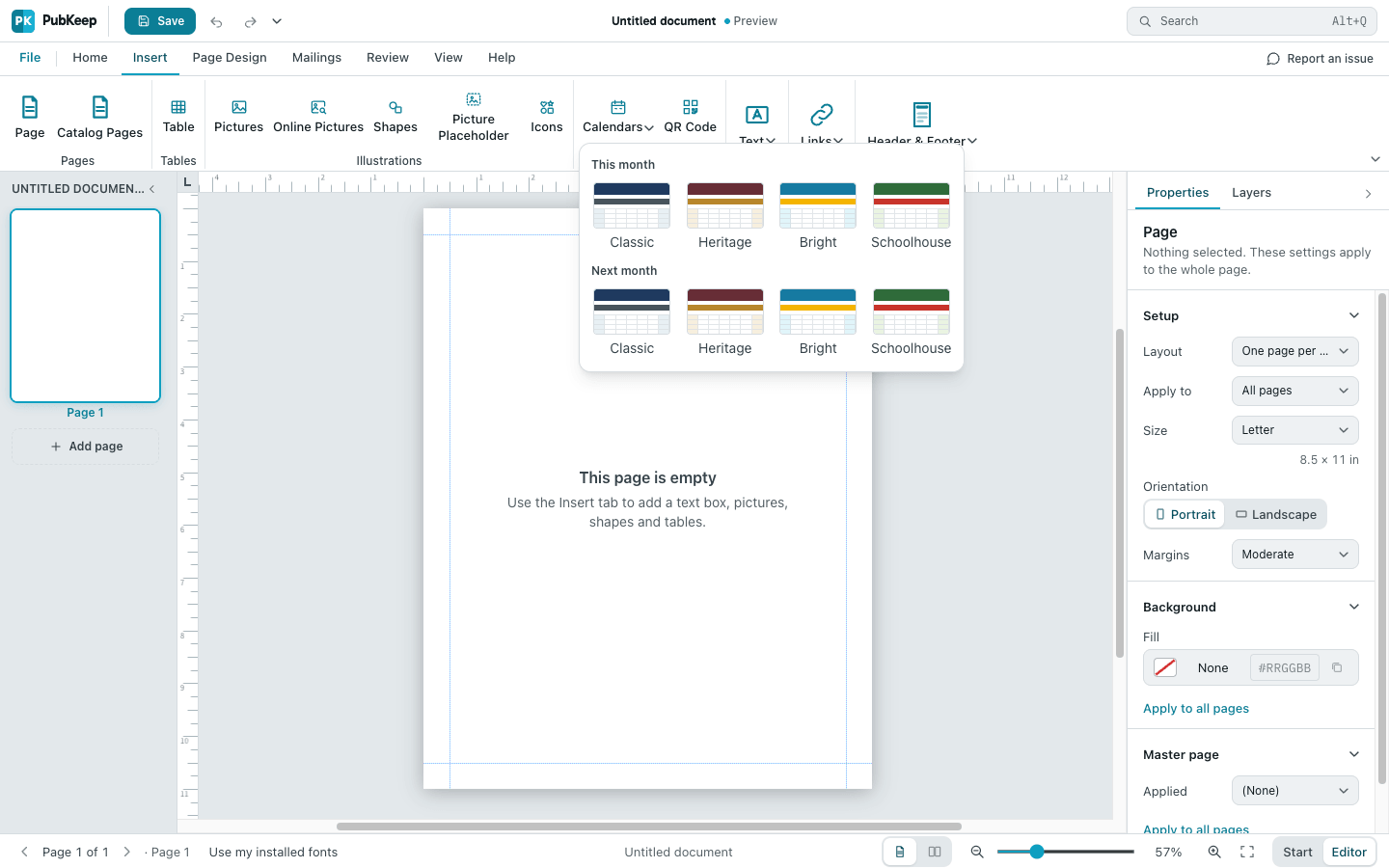
The calendar fills most of the page. Drag a corner handle to make it smaller.
To make a whole calendar publication with a page for each month, start from a template under Calendars on the Start screen instead.
Change the month or year
Section titled “Change the month or year”- Click the calendar to select it.
- In the Properties pane on the right, find Calendar.
- Pick a month under Month.
- Type the year in Year.
The calendar redraws with the right days at once.
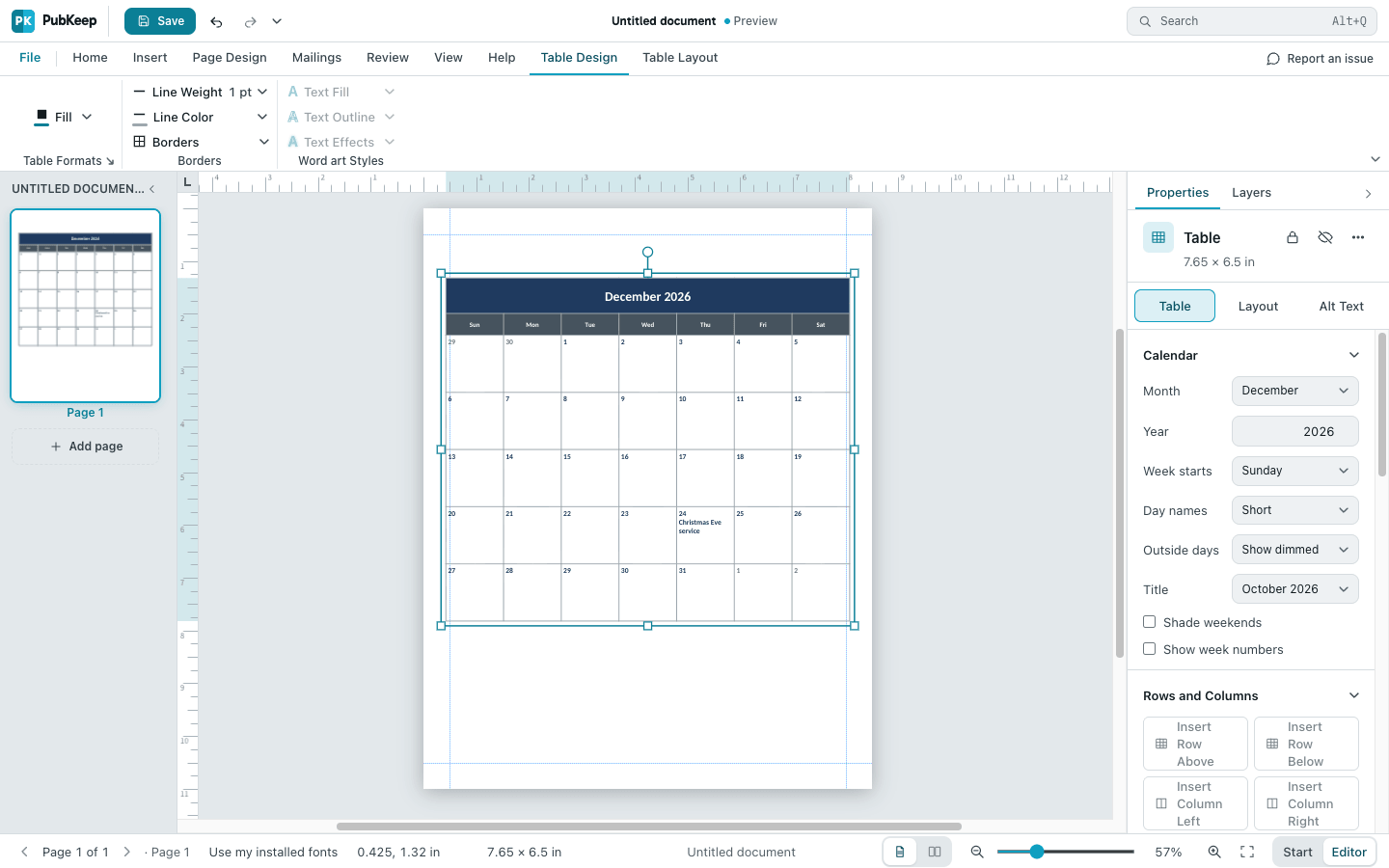
Change the start day and look
Section titled “Change the start day and look”These are in the same Calendar settings:
- Week starts puts Sunday or Monday in the first column.
- Day names shows the day names in Full, Short or One letter.
- Outside days are the days from the months before and after. Choose Show dimmed, Shade or Hide.
- Title shows the month and year, the month in capitals, or None.
- Shade weekends colors Saturdays and Sundays.
- Show week numbers adds a column with the week of the year.
The design you picked when you inserted the calendar stays. To use a different design, insert a new calendar.
Add events to a day
Section titled “Add events to a day”- Click the calendar to select it.
- Click the day’s square to put the cursor in it.
- Press End, then Enter to start a new line under the day number.
- Type the event, like “Choir practice 7 pm”.
Format event text like any other text, with the Home tab.
Set the month, year and start day before you add events. An event stays in its square when you change them, so after a change it can sit on a different date. Then move it to the right day.
If an event’s row isn’t part of the new month, PubKeep keeps it aside and shows it again when you switch back. The Properties pane tells you how many events are set aside.
Questions
Section titled “Questions”Can I add a QR code next to the calendar?
Section titled “Can I add a QR code next to the calendar?”Yes. See Insert a QR code.
Where’s the Properties pane?
Section titled “Where’s the Properties pane?”If you don’t see it, click View and check Properties Pane. See A tour of the PubKeep screen.