
How do I open a Publisher (.pub) file?
PubKeep opens your Publisher files as they are. Nothing is converted, and your original .pub file stays untouched.
From the start screen
Section titled “From the start screen”- Open PubKeep.
- Click Open a .pub file.
- Find your file, select it, and click “Open”.
From inside PubKeep
Section titled “From inside PubKeep”- Click File > Open, or press Ctrl+O (on a Mac, Cmd+O).
- Pick a file from Recent, or click Browse to find it on your computer.
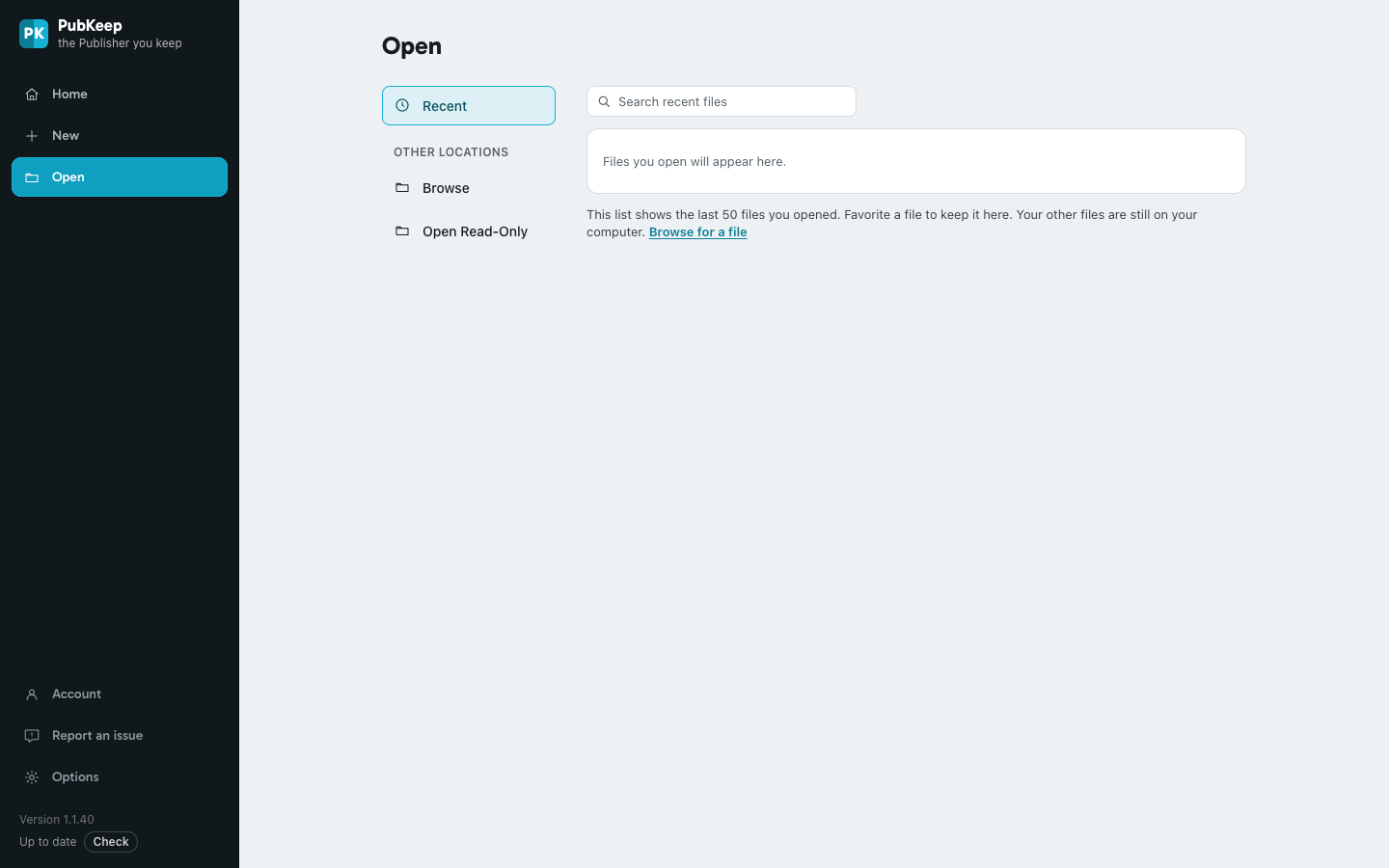
To look at a file without any chance of changing it, click File > Open > Open Read-Only instead of Browse.
Open .pub files by double-clicking them (Windows)
Section titled “Open .pub files by double-clicking them (Windows)”PubKeep can be the app that opens .pub files when you double-click them.
- The first time, PubKeep may ask “Open .pub files with PubKeep when you double-click them?” Click Yes.
- Or click File > Options > General > Make PubKeep the default.
- Windows Settings opens. Click the box under .pub, choose PubKeep, and click “Set default”.
When you save
Section titled “When you save”The first time you open a .pub file, PubKeep reminds you that saving makes a new PubKeep file (.pubk) and leaves your original .pub file untouched. See Save your work.
If it still doesn’t open
Section titled “If it still doesn’t open”It says the file needs an upgrade
Section titled “It says the file needs an upgrade”Files from Publisher 97 or 98 can’t be opened directly. PubKeep offers to upgrade them for you. See Older Publisher files.
It opens, but something looks wrong
Section titled “It opens, but something looks wrong”Use File > Report an issue and tell us what you see. You can choose to send the file so we can fix it.
Want to know more about .pub files? See how to open a .pub file and how to edit one.