
Insert a QR code
Publisher never had QR codes. PubKeep does. Put one on a bulletin, flyer or poster, and people can open your giving page, website or event signup by pointing a phone camera at it.
Insert a QR code
Section titled “Insert a QR code”- Click the Insert tab.
- Click QR Code.
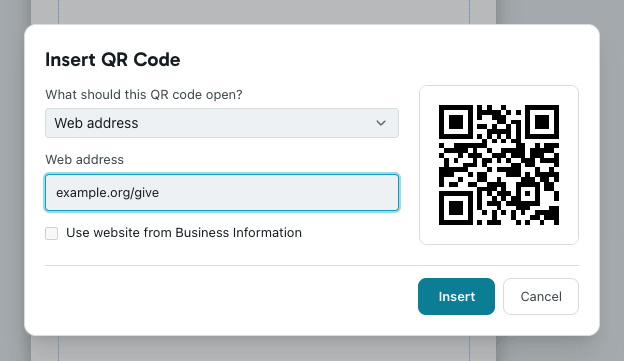
- Under What should this QR code open?, pick what the code holds:
- Web address opens a web page, like your giving page or a signup form.
- Email starts an email to the address you type.
- Phone offers to call the number you type.
- Plain text shows a short message.
- Type the address, number or text. The preview on the right updates as you type.
- Click Insert.
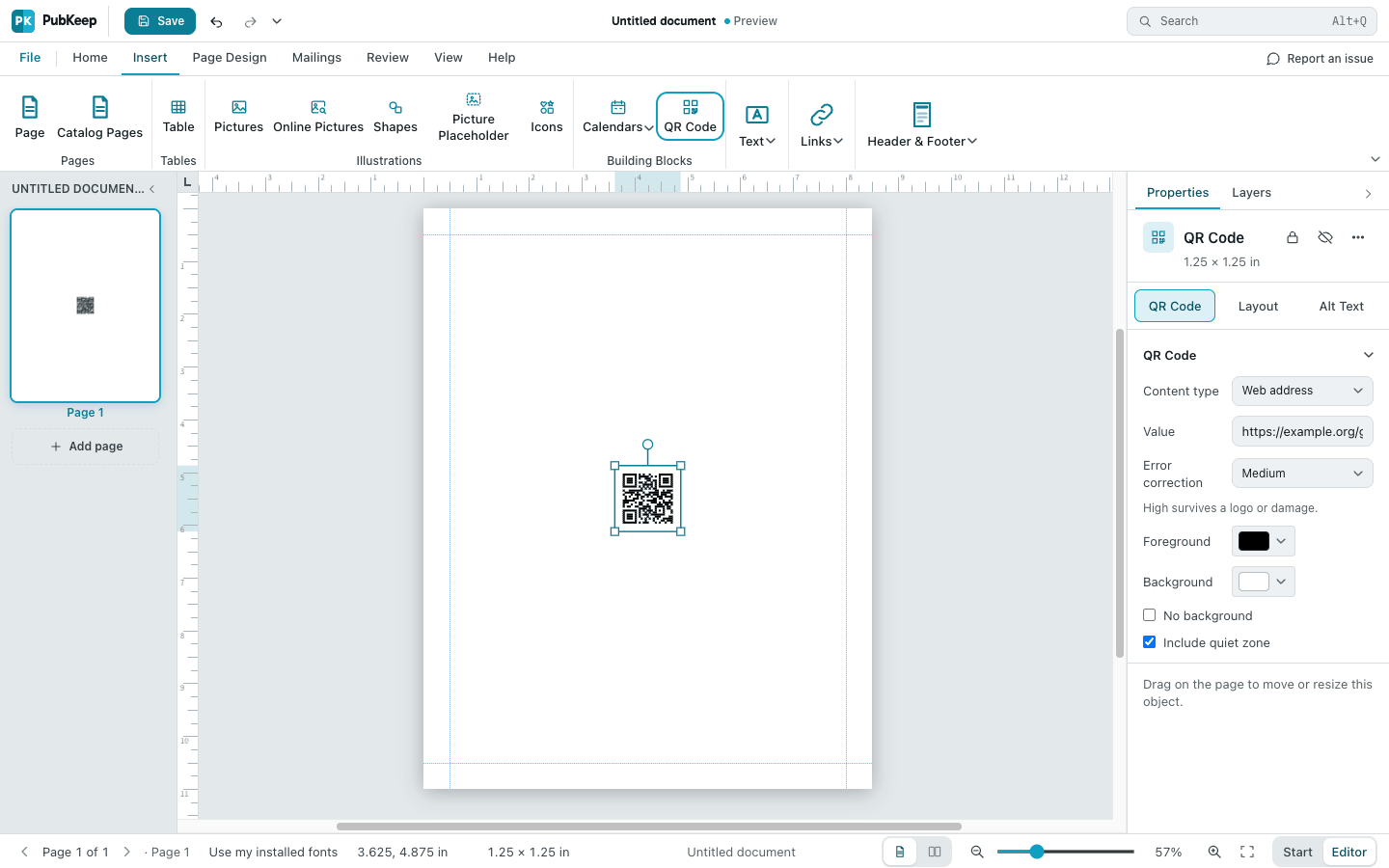
The QR code goes in the middle of the page. Drag it where you want it.
To use your church or organization’s website, check Use website from Business Information. The code then changes on its own when you change the website in Business Information. The box is grayed out until a website is saved there.
Change what it opens
Section titled “Change what it opens”- Click the QR code to select it.
- In the Properties pane on the right, change Content type or Value.
- Press Enter.
You can also right-click the QR code and choose Edit QR Code… to open the same dialog you used to insert it.
Change its size and colors
Section titled “Change its size and colors”Drag a corner handle to make the code bigger or smaller. It stays square, so phones can still read it.
With the QR code selected, the Properties pane has more settings:
- Foreground is the color of the squares. Background is the color behind them.
- No background lets the page show through.
- Include quiet zone keeps a blank border around the code. Leave it on. Phones need that border to find the code.
- Error correction set to High lets a phone read the code even if part of it is covered or smudged. Use it if you put a small logo on top.
Tips for printing
Section titled “Tips for printing”- Keep it big enough. About 1 inch (2.5 cm) wide is the smallest that scans well. Go bigger on a poster people read from across the room.
- Use dark squares on a light background, like black on white. Light squares on a dark background, or two similar colors, often won’t scan.
- Keep the web address short. A short address makes a simpler code that scans more easily.
- Print one copy and scan it with your phone camera before you print them all.
Ideas for churches and nonprofits
Section titled “Ideas for churches and nonprofits”- A giving or donation page in the bulletin or on the offering envelope.
- Your website on flyers, posters and newsletters.
- An event signup form, like a volunteer sign-up, retreat registration or potluck list.
- A phone number for the office or prayer line.
Questions
Section titled “Questions”My phone won’t scan the code
Section titled “My phone won’t scan the code”Make the code bigger, make sure the colors are dark on light, and check that Include quiet zone is on. If the code still won’t scan, check the address in Value for a typo.
Where’s the rest of the Properties pane?
Section titled “Where’s the rest of the Properties pane?”See A tour of the PubKeep screen. To add a calendar to the same page, see Insert a calendar and change the month.