
A tour of the PubKeep screen
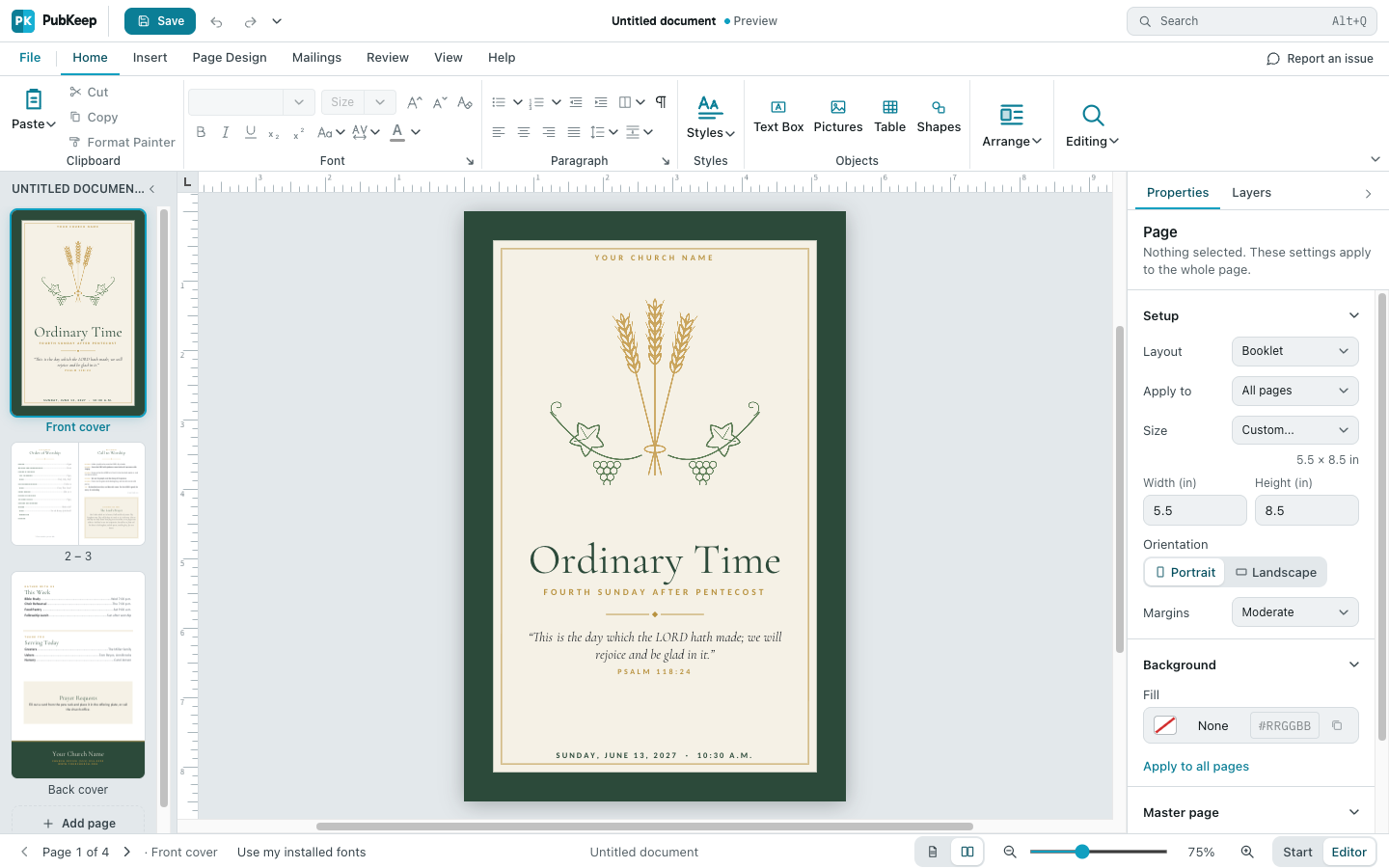
PubKeep is laid out like Publisher, so most things are where you expect them. Here’s what each part of the screen does.
The title bar
Section titled “The title bar”The very top shows your publication’s name in the middle. On the left is the Quick Access Toolbar, a row of small buttons for things you do often. On the right is the Search box. Type what you want to do, like “wrap text”, and pick it from the list. You can also press Alt+Q (on a Mac, Option+Q).
The ribbon
Section titled “The ribbon”Under the title bar is the ribbon, with the File, Home, Insert, Page Design, Mailings, Review, View and Help tabs. Click a tab to see its buttons.
- File opens the full-screen menu with New, Open, Save, Save As, Print, Export, Account and Options.
- More tabs appear when you select something. Select a picture and you’ll see Picture Format. Select a shape and you’ll see Shape Format. Tables get Table Design and Table Layout.
- Need more room? Press Ctrl+F1 (on a Mac, Cmd+Option+R) to show only the tab names. Press it again to bring the whole ribbon back.
The Pages pane
Section titled “The Pages pane”Down the left side is a small picture of every page. Click one to go to it. Drag a page up or down to change the order. Click Add page at the bottom to add one. See Add or delete pages and Change the page order.
The Properties pane
Section titled “The Properties pane”On the right, the Properties pane shows settings for whatever you’ve selected, like a text box’s font or a picture’s border. It has two tabs: Properties and Layers.
The status bar
Section titled “The status bar”Along the bottom you’ll see which page you’re on, like “Page 1 of 4”, and arrows for Previous page and Next page. On the right are buttons for Single page or Two-page spread, then the zoom slider with Zoom out and Zoom in. See Make the page bigger or smaller.
Questions
Section titled “Questions”The page list or the Properties pane disappeared
Section titled “The page list or the Properties pane disappeared”Click View, then under Show check Page Navigation for the page list or Properties Pane for the right side.
Where are the rulers?
Section titled “Where are the rulers?”Click View and check Rulers.
How do I get back to my list of recent files?
Section titled “How do I get back to my list of recent files?”Click Start at the bottom right, or click File > Home.
New to opening Publisher files? See how to open a .pub file.