
Remove a box outline
Dark lines or frames around a text box, picture or shape are outlines. They often come along from a Publisher file. You can remove an outline, or change its color and thickness.
Remove or change an outline
Section titled “Remove or change an outline”- Click the box to select it.
- Click the Shape Format tab. For a picture, click the Picture Format tab instead.
- Click the arrow next to Shape Outline (for a picture, Picture Border).
- Click No Outline.
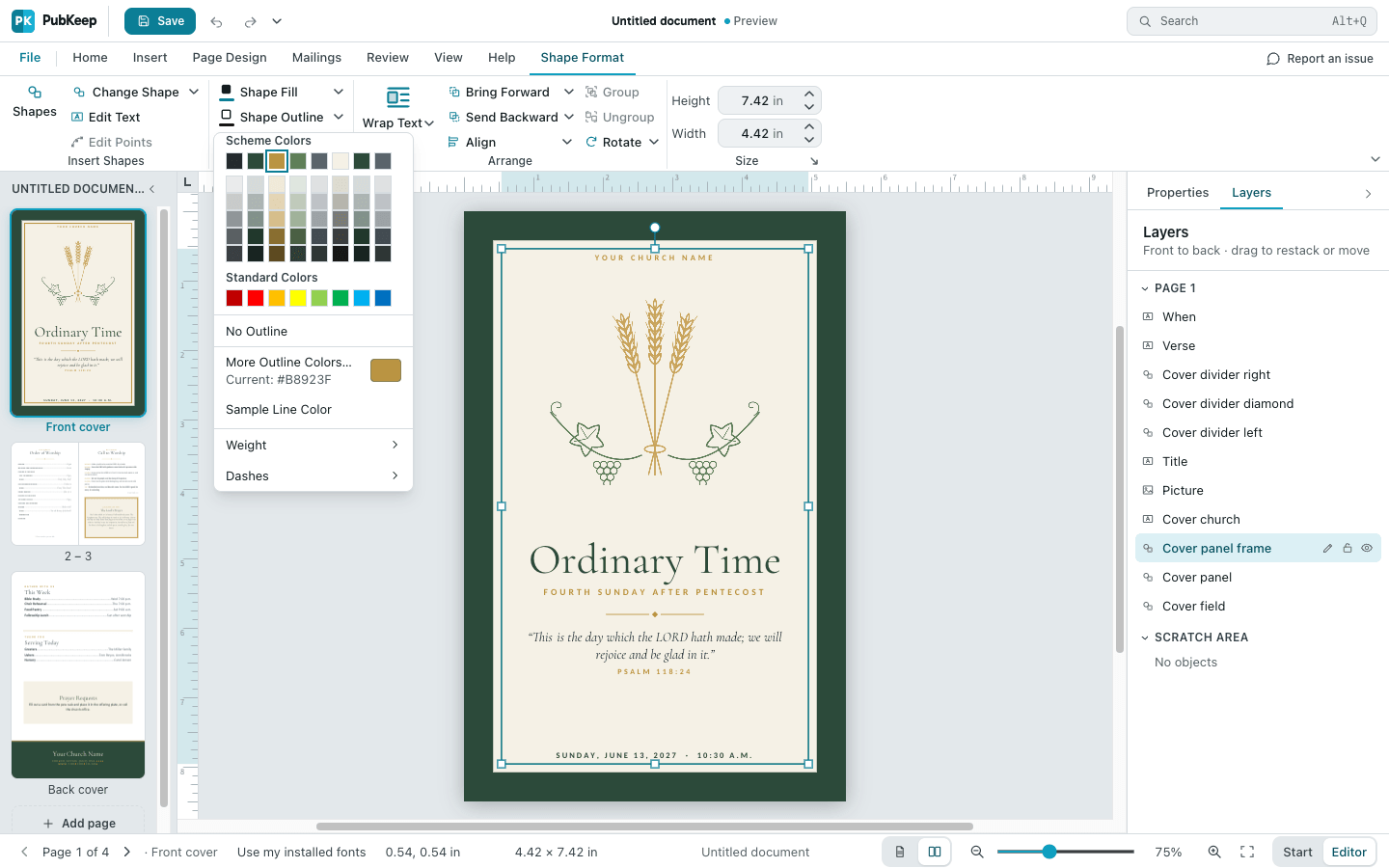
To keep the outline but change it, use the same menu. Click a color to change the color. Point to Weight to make the line thinner or thicker, or to Dashes for a dotted or dashed line.
An outline shows on every page
Section titled “An outline shows on every page”If the same outline is on every page and you can’t click it, it’s on the master page.
- On the View tab, click Master Page.
- Click the box with the outline.
- Click Shape Format > Shape Outline > No Outline.
- Click Close Master Page.
The outline is gone from every page that uses that master. To learn more, see How do I use master pages?.
Remove outlines from several boxes at once
Section titled “Remove outlines from several boxes at once”- Click the first box.
- Hold down Shift and click each of the others.
- Click Shape Format > Shape Outline > No Outline.
Text boxes and shapes can go together. Do pictures in a separate pass with Picture Format > Picture Border > No Outline.
Lines that don’t print
Section titled “Lines that don’t print”Some lines show on screen only and never print:
- Dashed lines around the edge of every box are boundaries. They show where each box is.
- Colored lines across the page are guides. They help you line things up.
To hide them, click the View tab. Under Show, clear Boundaries or Guides. For more on guides, see How do I use guides, rulers and snapping?.