
How do I print labels?
In PubKeep, one label is one page. When you print, PubKeep repeats it across the label sheet for you.
Set up a label sheet
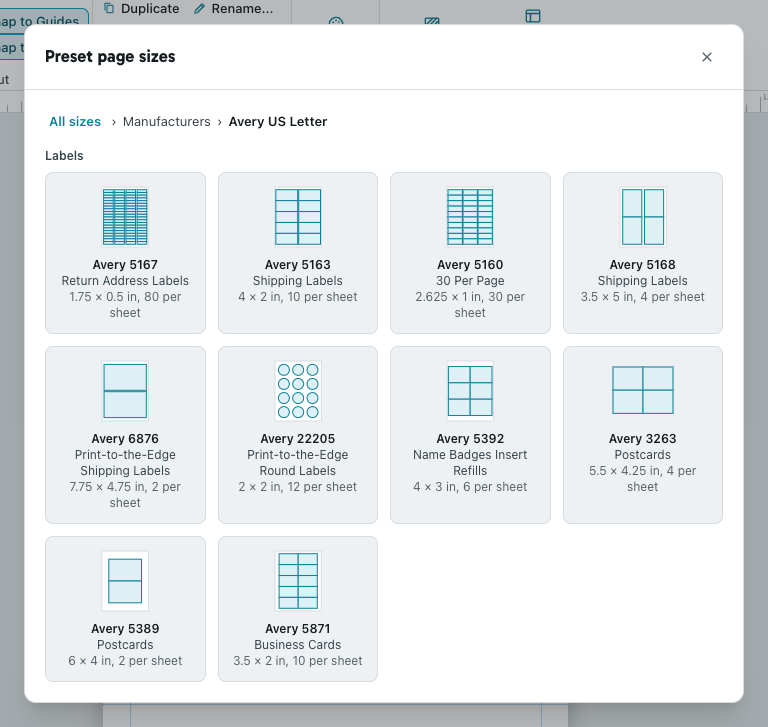
Section titled “Set up a label sheet”- On the Page Design tab, click Size, then More Preset Page Sizes….
- Under Manufacturers, open the Avery US Letter folder, or the Avery A4/A5 folder for A4 sheets. You can also open Labels under Publication Types.
- Click the label that matches the product number on your package, like 5160.
To start fresh instead, click File > New > More blank page sizes and choose your label there.
Print a full sheet of the same label
Section titled “Print a full sheet of the same label”- Click File > Print, or press Ctrl+P (Cmd+P on a Mac).
- Under Settings, make sure the layout card says Multiple copies per sheet.
- In Copies of each page:, type how many labels you want. They fill the sheet from the top left.
- If your sheet is partly used, click Layout Options… and set the Start row and Start column under First Sheet to the first empty label.
- Click Print.
To print different labels on one sheet, like a list of names, choose Multiple pages per sheet so each page fills the next label.
Print on a label printer
Section titled “Print on a label printer”On a label or thermal printer, PubKeep prints one label at a time at the label’s own size. Make sure the label size in your publication matches the roll in the printer.
If it still looks wrong
Section titled “If it still looks wrong”My labels print sideways
Section titled “My labels print sideways”PubKeep updates keep improving how label printers are handled, so first make sure you have the latest update. Then check these:
- If File > Print shows a Portrait or Landscape card, choose the one that matches how the label sits on the roll.
- In the Windows desktop app, click Printer Properties and check that the printer’s label size matches your label.
If it still prints turned, report the issue and include your printer’s make and model.
The labels don’t line up with the sheet
Section titled “The labels don’t line up with the sheet”Check that you picked the exact product number. If they’re all off by the same amount, adjust the margins in Layout Options….
Churches print a lot of name tags and mailing labels. See our Publisher for churches page for more.