
What are the keyboard shortcuts?
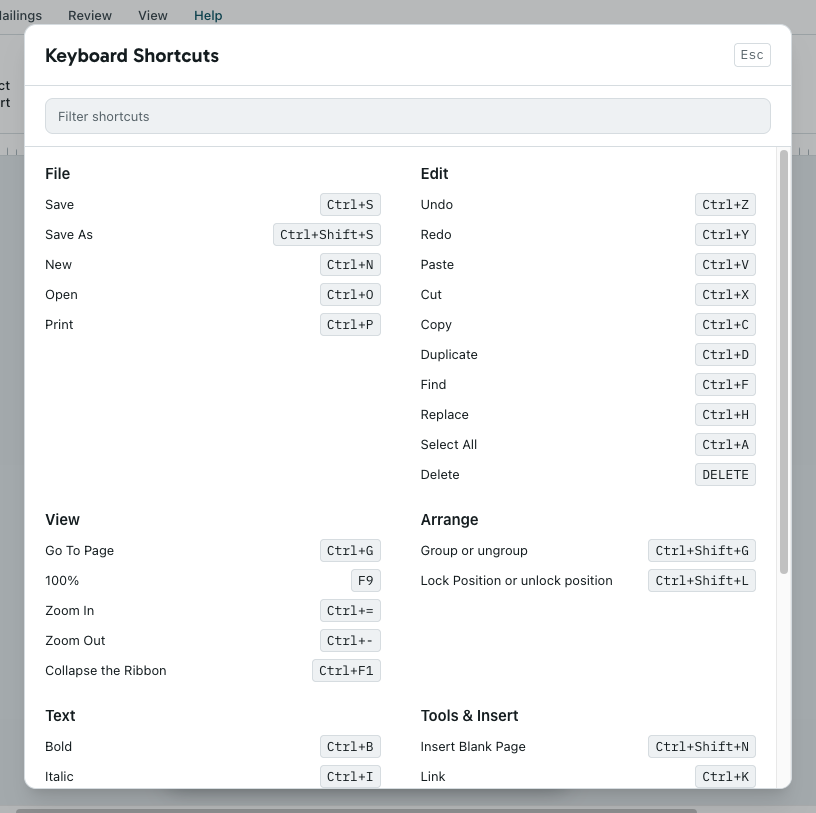
PubKeep uses the same keyboard shortcuts as Publisher for most everyday tasks, and it can show you the full list any time.
See every shortcut
Section titled “See every shortcut”- Click the Help tab.
- Click Keyboard Shortcuts. You can also press Ctrl+/ (Cmd+/ on a Mac).
- To find one quickly, type a word like “bold” or “page” in the Filter shortcuts box.
- Press Esc to close the list.
Find a command by name
Section titled “Find a command by name”- Click Search at the top of the window, or press Alt+Q (Option+Q on a Mac).
- Type what you want to do, like “wrap text”, or what Publisher called it.
- Press Enter to use the command or see where it lives.
Shortcuts you’ll use most
Section titled “Shortcuts you’ll use most”On a Mac, use Cmd wherever you see Ctrl.
- Ctrl+S saves, and Ctrl+Shift+S is Save As.
- Ctrl+P prints.
- Ctrl+Z undoes. Ctrl+Y redoes (Cmd+Shift+Z on a Mac).
- Ctrl+C, Ctrl+X and Ctrl+V copy, cut and paste.
- Ctrl+D duplicates the selected object.
- Ctrl+B, Ctrl+I and Ctrl+U make text bold, italic or underlined.
- Ctrl+F finds text.
- Ctrl+G is Go To Page.
- Ctrl+Shift+G groups the selected objects, or ungroups a group.
- Ctrl+Shift+N adds a blank page after this one.
- Ctrl+= and Ctrl+- zoom in and out. F9 switches between 100% and your last zoom.
- F7 checks spelling.
If it still looks wrong
Section titled “If it still looks wrong”A shortcut does nothing
Section titled “A shortcut does nothing”Some shortcuts only work when something is selected. For example, bold needs text selected, and group needs two or more objects selected. Select what you want to change and try again.
A Publisher shortcut I used isn’t in the list
Section titled “A Publisher shortcut I used isn’t in the list”Search the Keyboard Shortcuts list first. If it’s not there, use Search to find the command by name.