
Add page numbers, headers and footers
Page numbers, headers and footers live on the master page, so they show on every page that uses it.
Add page numbers
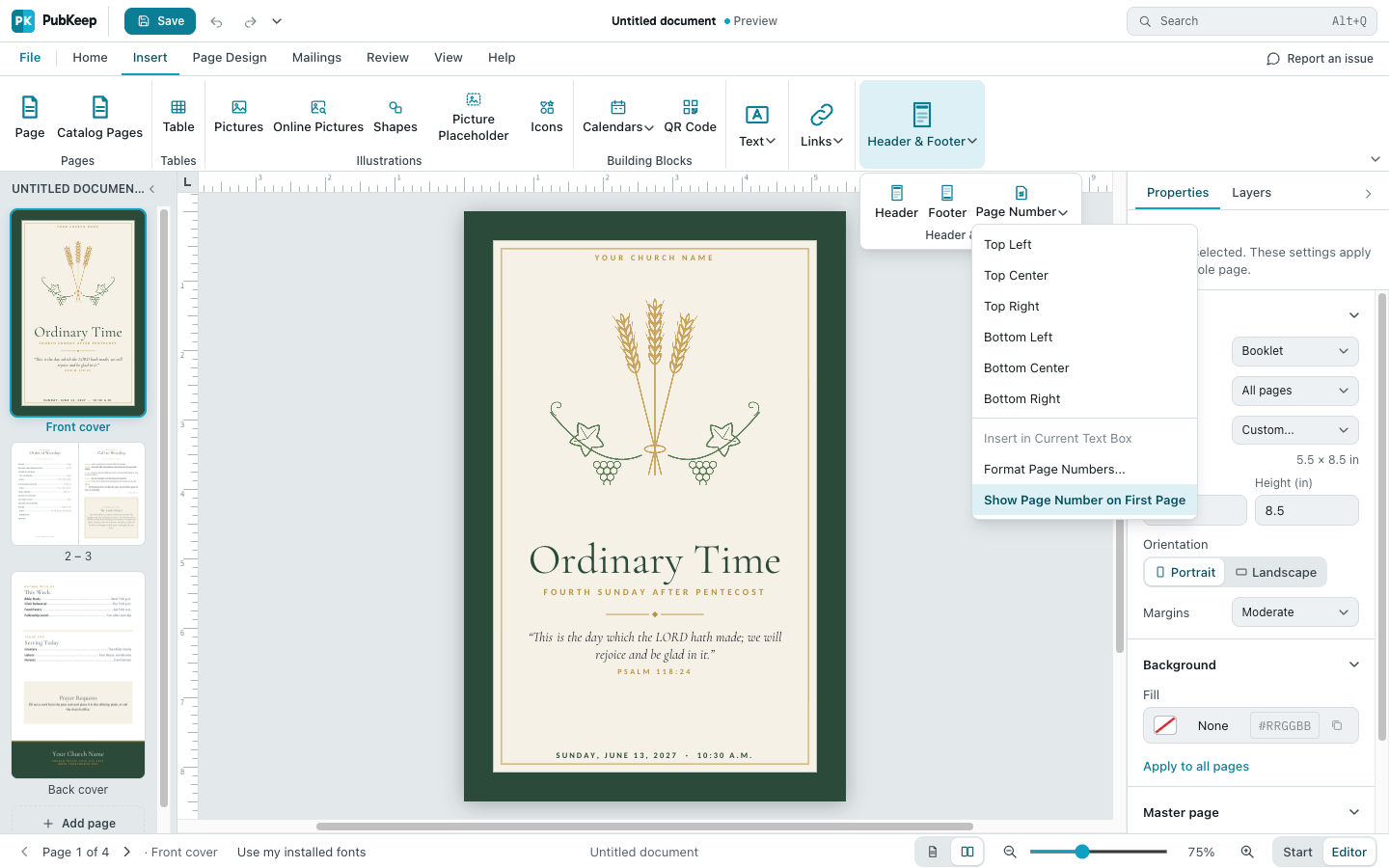
Section titled “Add page numbers”- On the Insert tab, in the Header & Footer group, click the arrow next to Page Number.
- Pick a spot, like Bottom Center or Top Right.
PubKeep puts the number on the master page and keeps you on your page. Each page shows its own number.
To put a number inside a text box you’re typing in, choose Page Number > Insert in Current Text Box instead.
Add a header or footer
Section titled “Add a header or footer”- On the Insert tab, click Header or Footer.
- PubKeep opens the master page with your cursor in the header or footer. Type your text.
- To switch between the header and the footer, click Show Header/Footer on the Master Page tab.
- Click Close Master Page when you’re done.
Change how page numbers look or where they start
Section titled “Change how page numbers look or where they start”- Click the arrow next to Page Number and choose Format Page Numbers….
- Under Number format:, pick a style, like 1, 2, 3, … or i, ii, iii, ….
- To start at a different number, choose Start this section with: and type the number.
- Click OK.
Hide the page number on the cover
Section titled “Hide the page number on the cover”Click the arrow next to Page Number and click Show Page Number on First Page to turn it off. Click it again to turn it back on.
You’ll also find Format Page Numbers… and Show Page Number on First Page when you right-click a page thumbnail and point to Page Numbers.
If it still looks wrong
Section titled “If it still looks wrong”The number shows on a page where I don’t want it
Section titled “The number shows on a page where I don’t want it”That page uses the master. Choose Page Design > Master Pages > (None) for that page. See How do I use master pages?
I can’t click the page number to change it
Section titled “I can’t click the page number to change it”It’s on the master page. Open View > Master Page, make your change, then click Close Master Page.