
Draw a line
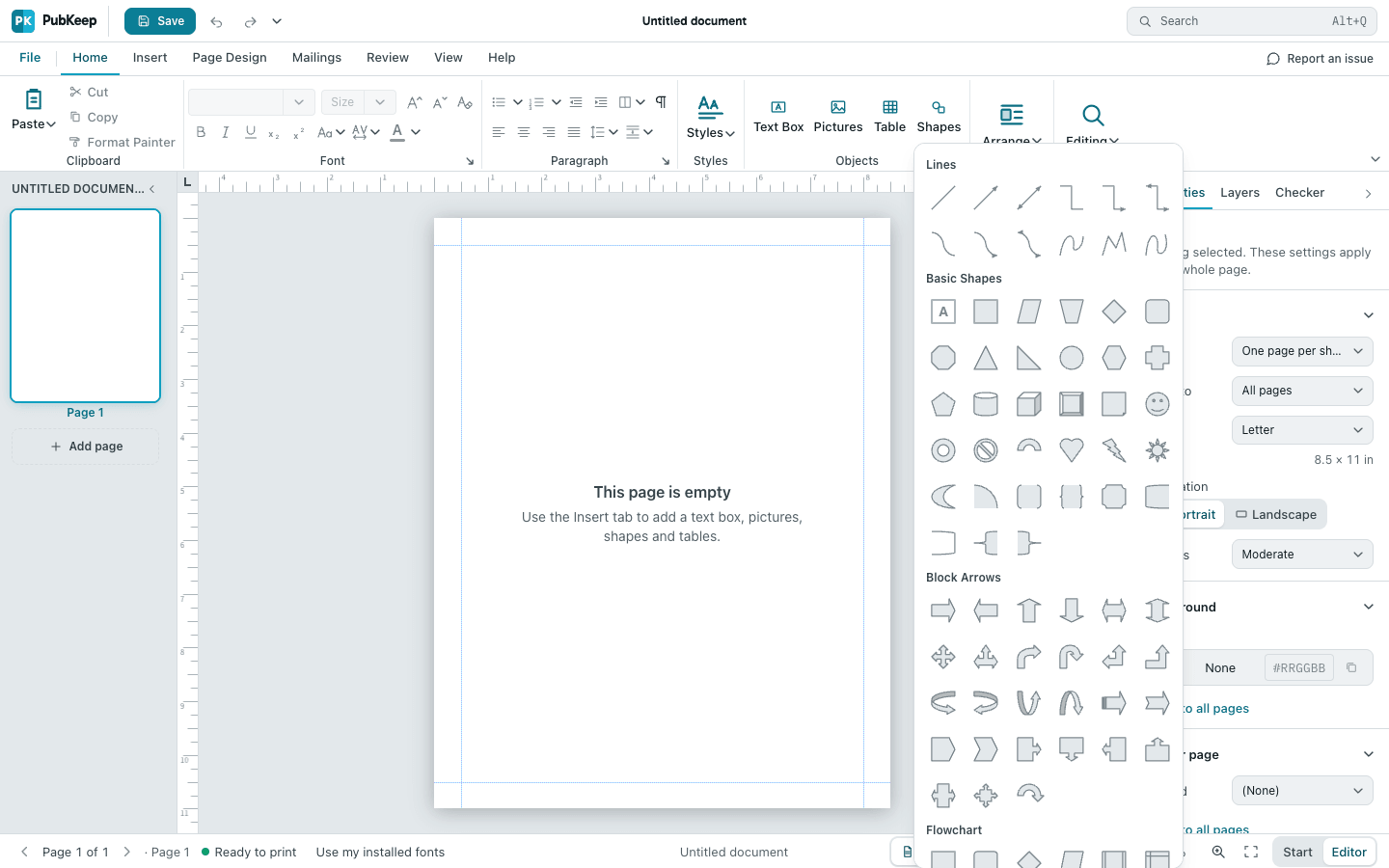
Lines are in the Shapes gallery. You draw one by dragging on the page, then set its thickness, color and style from the ribbon or the Properties pane.
Draw the line
Section titled “Draw the line”- Click the Home tab. In the Objects group, click Shapes. (Shapes is also on the Insert tab.)
- In the Lines row at the top of the gallery, click Line. For an arrow, click Line Arrow or Line Arrow: Double next to it.
- Point to where the line should start, then drag to where it should end and let go.
To keep the line level, straight up and down, or at a 45 degree angle, hold Shift while you drag.
The line stays selected, and the Shape Format tab opens.
Change the thickness and color
Section titled “Change the thickness and color”- Click the line to select it.
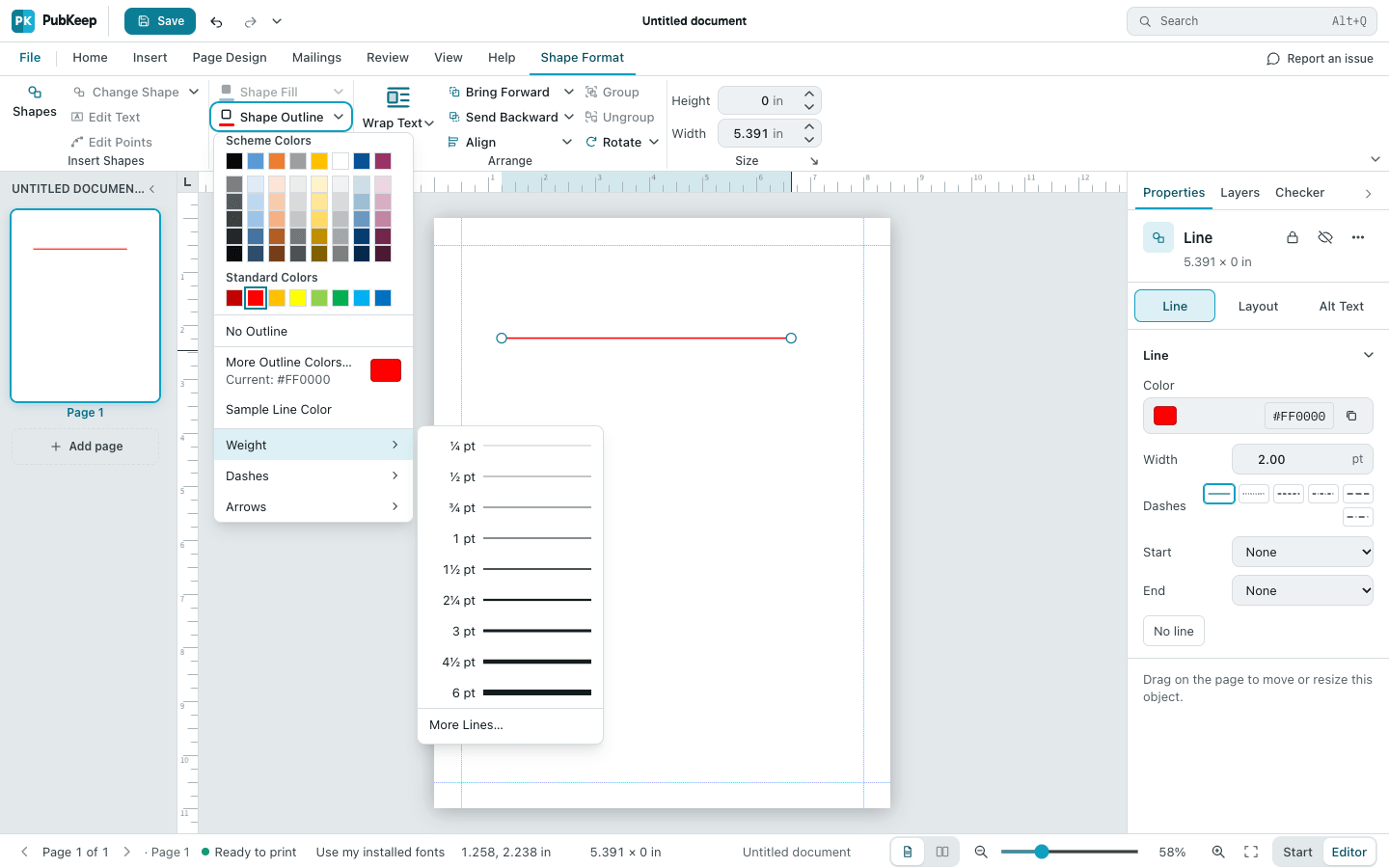
- Click the Shape Format tab, then click Shape Outline.
- Click a color to change the line’s color.
- To change the thickness, open Shape Outline again, point to Weight, and click a size. For a size that isn’t listed, click More Lines.
Make it dashed or add arrowheads
Section titled “Make it dashed or add arrowheads”- Select the line, then click Shape Format > Shape Outline.
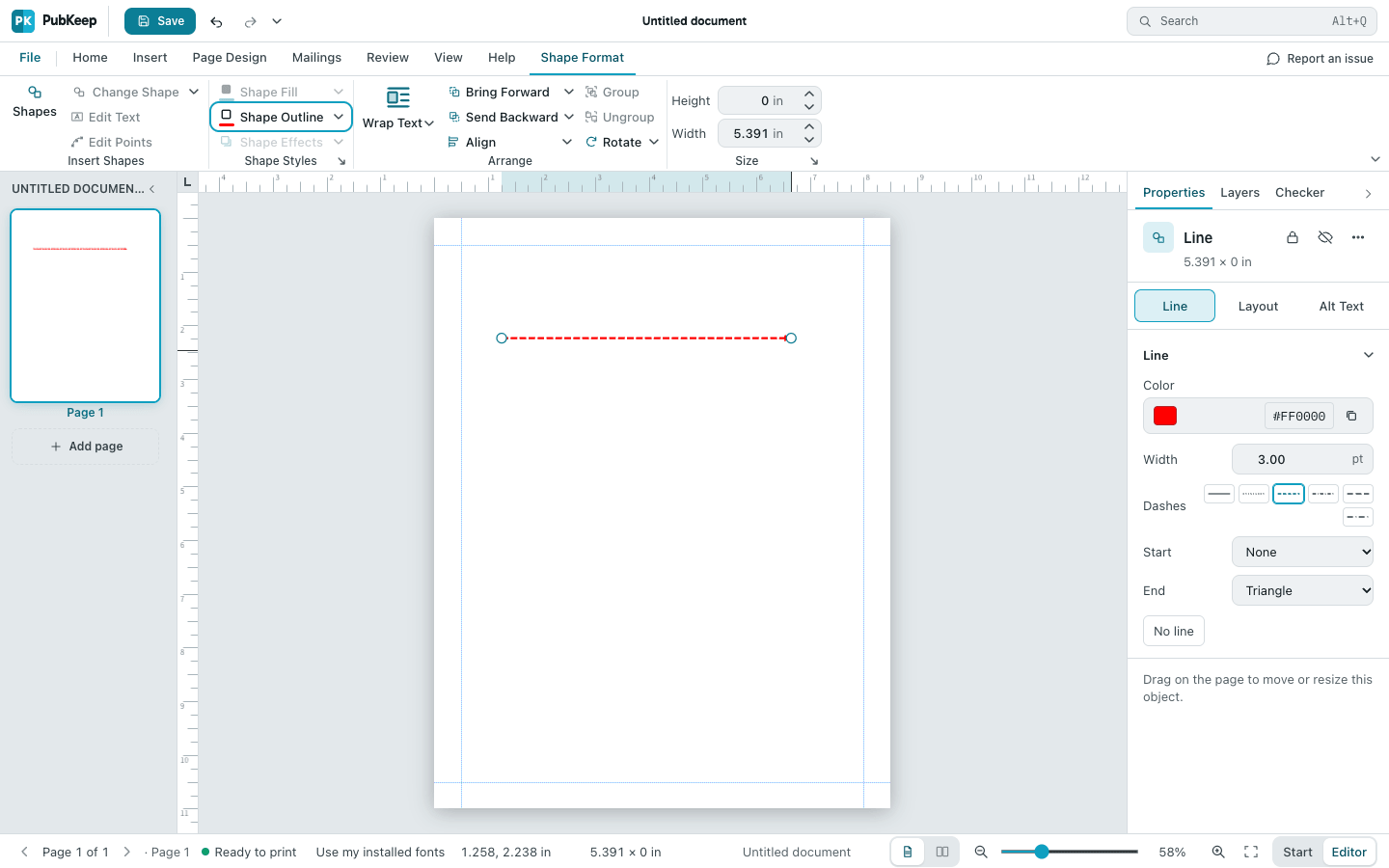
- Point to Dashes and click a style for a dashed or dotted line.
- Point to Arrows and click a style to put an arrowhead on one end or both.
The Properties pane on the right has the same settings in its Line section: Color, Width in points, Dashes, and the arrowhead at the start and end of the line.
Move or resize the line
Section titled “Move or resize the line”- To make the line longer, shorter or change its angle, drag the round handle at either end. Hold Shift to keep it level, straight up and down, or at 45 degrees.
- To move the line, drag it from the middle.
- To set an exact length, type it in Width (or Height for an up-and-down line) on the Shape Format tab.
If it still looks wrong
Section titled “If it still looks wrong”The line came out at a slight angle
Section titled “The line came out at a slight angle”Your hand moved a little while you dragged. Drag one end handle again with Shift held down, and the line snaps level.
I can’t select the line to change it
Section titled “I can’t select the line to change it”A line is thin, so click right on it. When it’s selected, a round handle shows at each end.
I want to remove the line
Section titled “I want to remove the line”Click it, then press Delete.