
Everything looks too big or too small
There are two separate sizes in PubKeep: the size of the buttons and menus around your page, and how close you’re zoomed in on the page itself. You can change each one on its own.
Make the buttons and menus larger
Section titled “Make the buttons and menus larger”- Click the File tab.
- Click Options at the bottom of the left side.
- Click Advanced.
- Next to Interface size:, choose Large or Larger. (Normal puts it back.)
- Click OK.
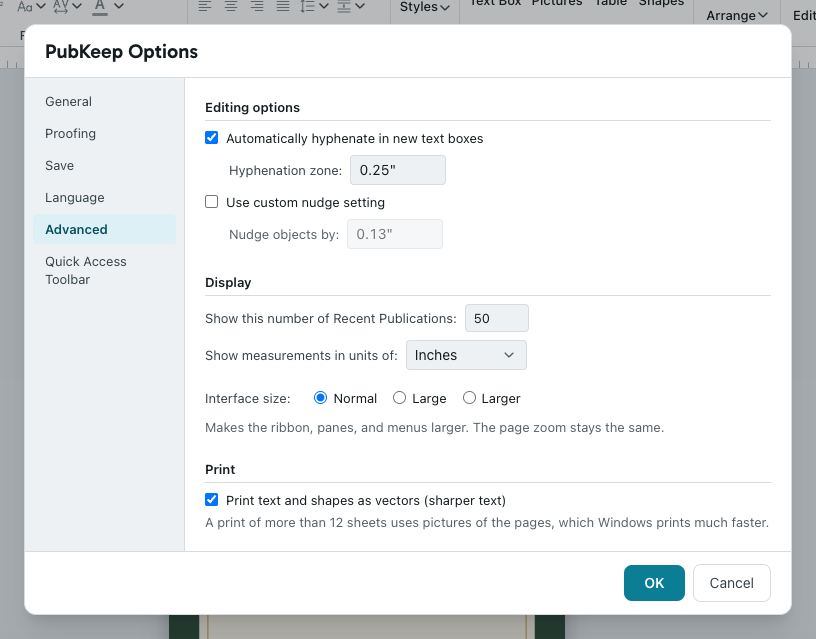
This makes the ribbon, panes, and menus larger. Your page and how it prints don’t change. PubKeep remembers the choice the next time you open it.
Zoom the page in or out
Section titled “Zoom the page in or out”- Click the View tab.
- In the Zoom group, choose one of these:
- Whole Page fits the whole page in the window.
- Page Width fits the width of the page, so text is larger and you scroll up and down.
- 100% shows the page at its actual size.
You can also zoom from the bottom right corner of the window:
- Click Zoom out (minus) or Zoom in (plus), or drag the slider between them.
- Click the percentage to pick a size from a list, or Fit page to see the whole page.

Keyboard shortcuts work too: Ctrl+= zooms in, Ctrl+- zooms out, and F9 switches between 100% and the zoom you had before. On a Mac, use Cmd instead of Ctrl. Holding Ctrl (or Cmd) while you turn the mouse wheel over the page zooms where the pointer is.
If it still looks wrong
Section titled “If it still looks wrong”Only the page looks small, not the buttons
Section titled “Only the page looks small, not the buttons”That’s the zoom. Choose View > Page Width or 100%. Interface size doesn’t change the page.
Does zooming change how my publication prints?
Section titled “Does zooming change how my publication prints?”No. Zoom and interface size only change what you see on screen. Your publication prints at its real size either way.