
Print some pages or several copies per sheet
You can print the whole publication, just the page you’re on, or any pages you type. All of these are in File > Print.
Print some of your pages
Section titled “Print some of your pages”- Click File > Print, or press Ctrl+P (Cmd+P on a Mac).
- Under Settings, click the pages card (it usually says Print All Pages).
- Choose Print Current Page for the page you’re on, or Custom Print Range to pick pages.
- For a custom range, type the pages in the Pages: box. Use a dash for a run and commas between pages, like
4-6or4, 5, 6or1-3, 8. - Click Print.
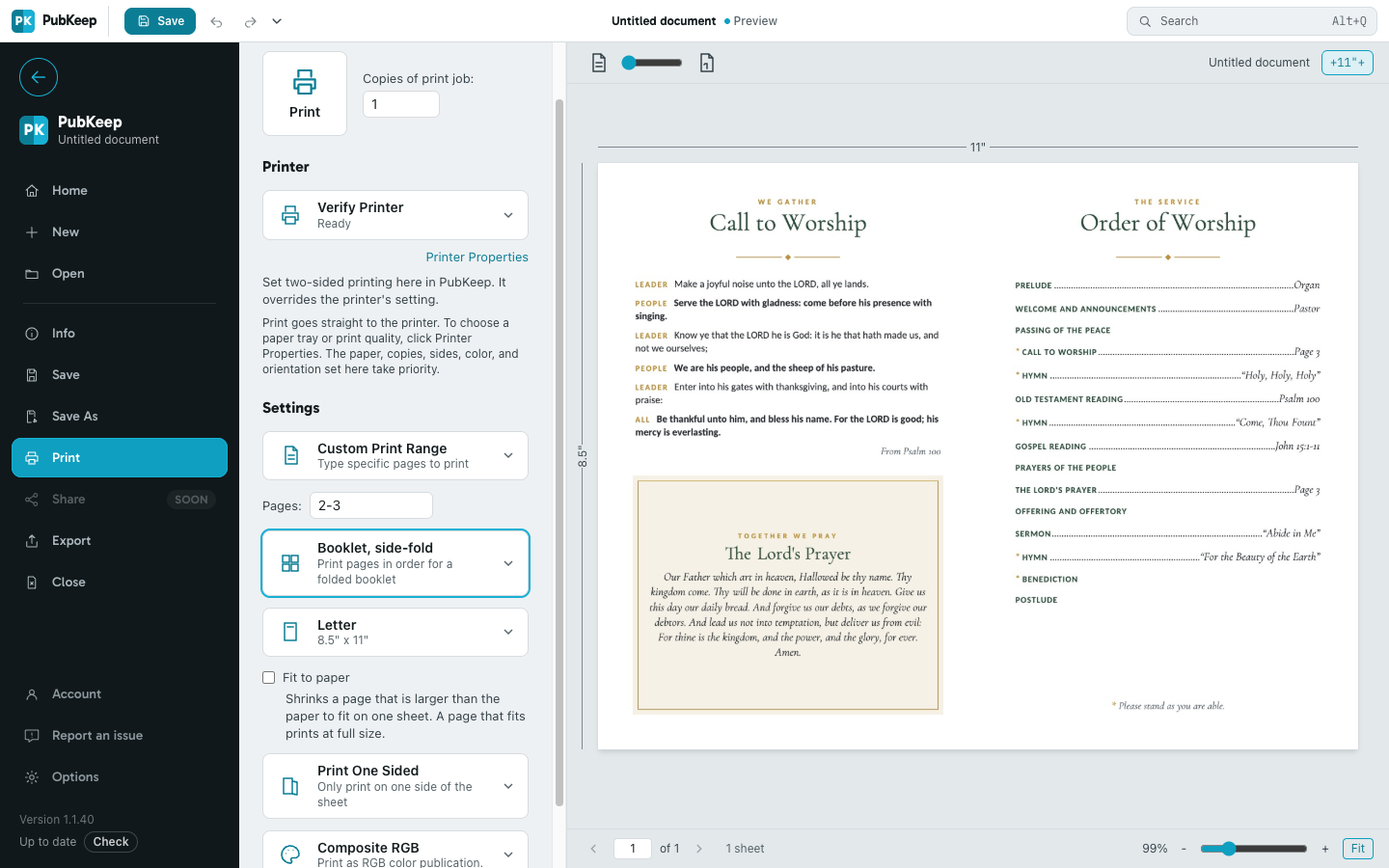
To print more than one copy of the whole job, type a number in Copies of print job: next to the Print button.
Print several copies on one sheet
Section titled “Print several copies on one sheet”This works for small pages like cards, tickets, name tags and labels.
- In File > Print, click the layout card and choose Multiple copies per sheet.
- In Copies of each page:, type how many copies you want.
- To change the margins or the space between copies, click Layout Options….
Multiple pages per sheet puts different pages side by side instead of copies of one page. You’ll only see these choices when your page is small enough for two or more to fit on the paper.
Shrink a big page to fit the paper
Section titled “Shrink a big page to fit the paper”A page larger than the paper prints Tiled, spread across several sheets. To shrink it onto one sheet instead, check Fit to paper. A page that already fits prints at full size. PubKeep doesn’t enlarge pages, and there’s no percentage scale setting.
If it still looks wrong
Section titled “If it still looks wrong”I printed one page of my booklet and half the sheet is blank
Section titled “I printed one page of my booklet and half the sheet is blank”In a booklet, a single page prints as its own small booklet, so it takes one half of the sheet. To print that page by itself, change the layout card to One page per sheet first.
The Pages box shows an error
Section titled “The Pages box shows an error”Type page numbers from 1 to the number of pages you have. Page numbers count from the first page of the publication, even if your page numbers start at a different number.
Where are crop marks?
Section titled “Where are crop marks?”Crop marks aren’t part of File > Print. Add them when you save a PDF, under Printer’s marks > Crop marks. See How do I save my publication as a PDF?