
Copy formatting with Format Painter
Format Painter copies the look of some text and puts it on other text, so you don’t have to set the font, size and color again. It works on shapes and pictures too.
Copy the look of text
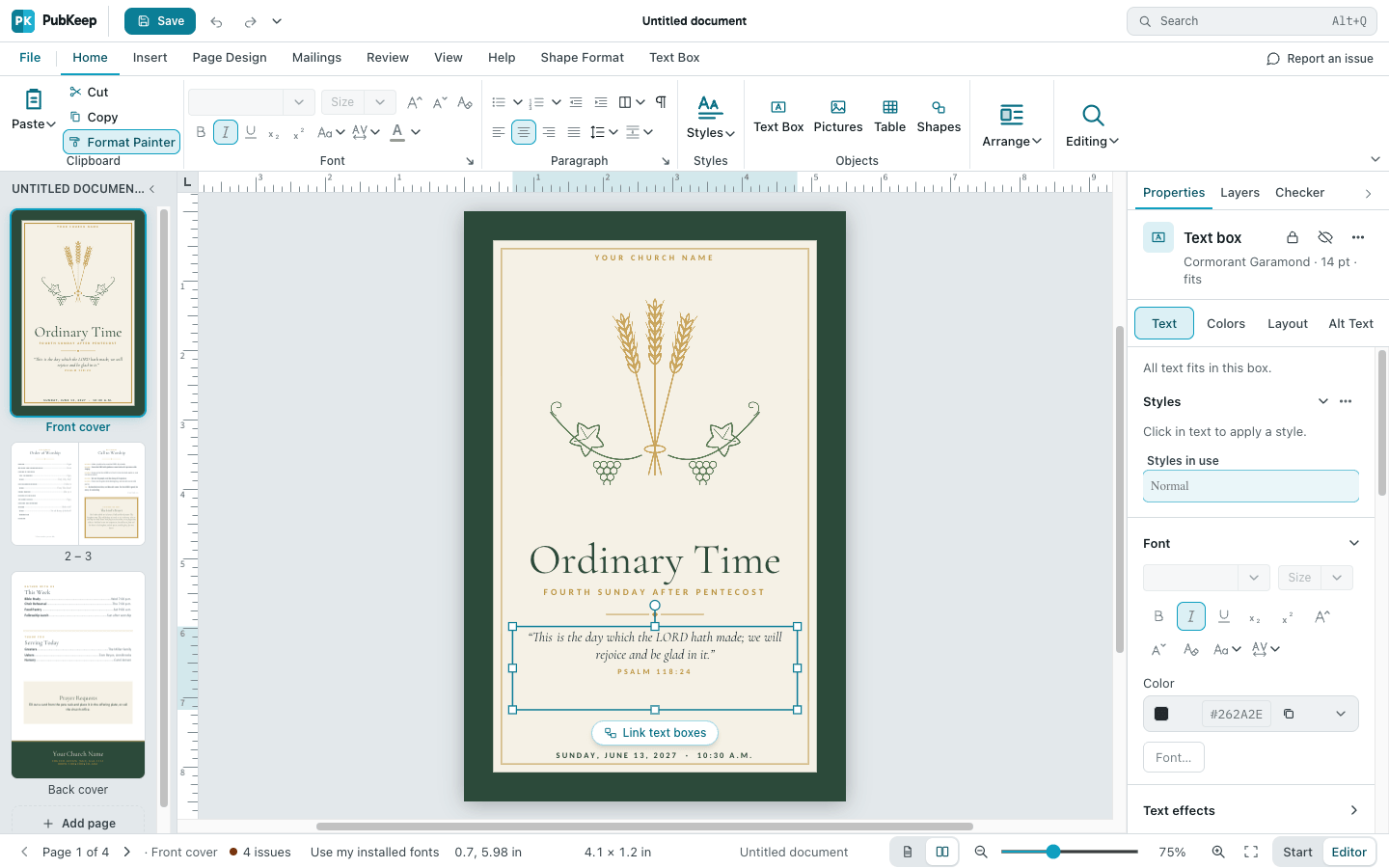
Section titled “Copy the look of text”- Click in the text that already looks the way you want. You can also select a few words of it.
- Click the Home tab. In the Clipboard group, click Format Painter. The button stays highlighted while it’s on.
- Drag across the text you want to change. To change one word, just click it.
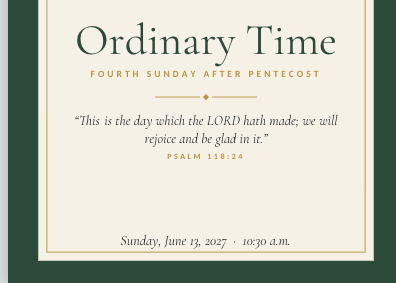
The text takes on the new look, and Format Painter turns off.
Change several places at once
Section titled “Change several places at once”- Click in the text that looks the way you want.
- Double-click Format Painter. It stays on after each use.
- Drag across each piece of text you want to change. You can move to other pages while it’s on.
- Press Esc, or click Format Painter again, to turn it off.
What it copies
Section titled “What it copies”From text, Format Painter copies:
- The font, size and color, plus bold, italic, underline and the other character settings.
- The paragraph settings: alignment, line spacing, space before and after, and indents. These go to every paragraph you drag across.
It doesn’t copy bullets or numbering. To add them, select the text and click Bullets or Numbering on the Home tab.
Copy a shape’s fill and outline
Section titled “Copy a shape’s fill and outline”- Click the shape, picture or text box you want to copy. For a text box, click its edge so the whole box is selected.
- Click the Home tab, then click Format Painter.
- Click the object you want to change.
A shape or text box takes the fill and the outline. A picture takes the outline as its border. Double-click Format Painter to change several objects, and press Esc when you’re done.
If it still looks wrong
Section titled “If it still looks wrong”Format Painter is grayed out
Section titled “Format Painter is grayed out”Nothing is selected. Click in some text, or click an object, then try again.
The text box changed color instead of the text
Section titled “The text box changed color instead of the text”You selected the whole text box before you clicked Format Painter, so it copied the box’s fill and outline. Click inside the text first, then click Format Painter.
Nothing changed when I clicked
Section titled “Nothing changed when I clicked”With Format Painter on, a click on a text box’s edge selects the box and turns Format Painter off. Click inside the text you want to change instead.
Is there a keyboard shortcut?
Section titled “Is there a keyboard shortcut?”No. Ctrl+Shift+C and Ctrl+Shift+V don’t copy formatting in PubKeep. Use the Format Painter button.
I changed the wrong text
Section titled “I changed the wrong text”Press Ctrl+Z (Cmd+Z on a Mac) to undo it.