
How do I use guides, rulers and snapping?
Guides are the lines on your page that help you line things up. They show on screen only and never print.
Show or hide rulers and guides
Section titled “Show or hide rulers and guides”- Click the View tab.
- In the Show group, check or clear Rulers and Guides.
Add column or grid guides
Section titled “Add column or grid guides”- Click the Page Design tab.
- In the Layout group, click Guides.
- Choose 1 Column, 2 Columns, 3 Columns or 2 x 2 Grid. No Guides clears them.
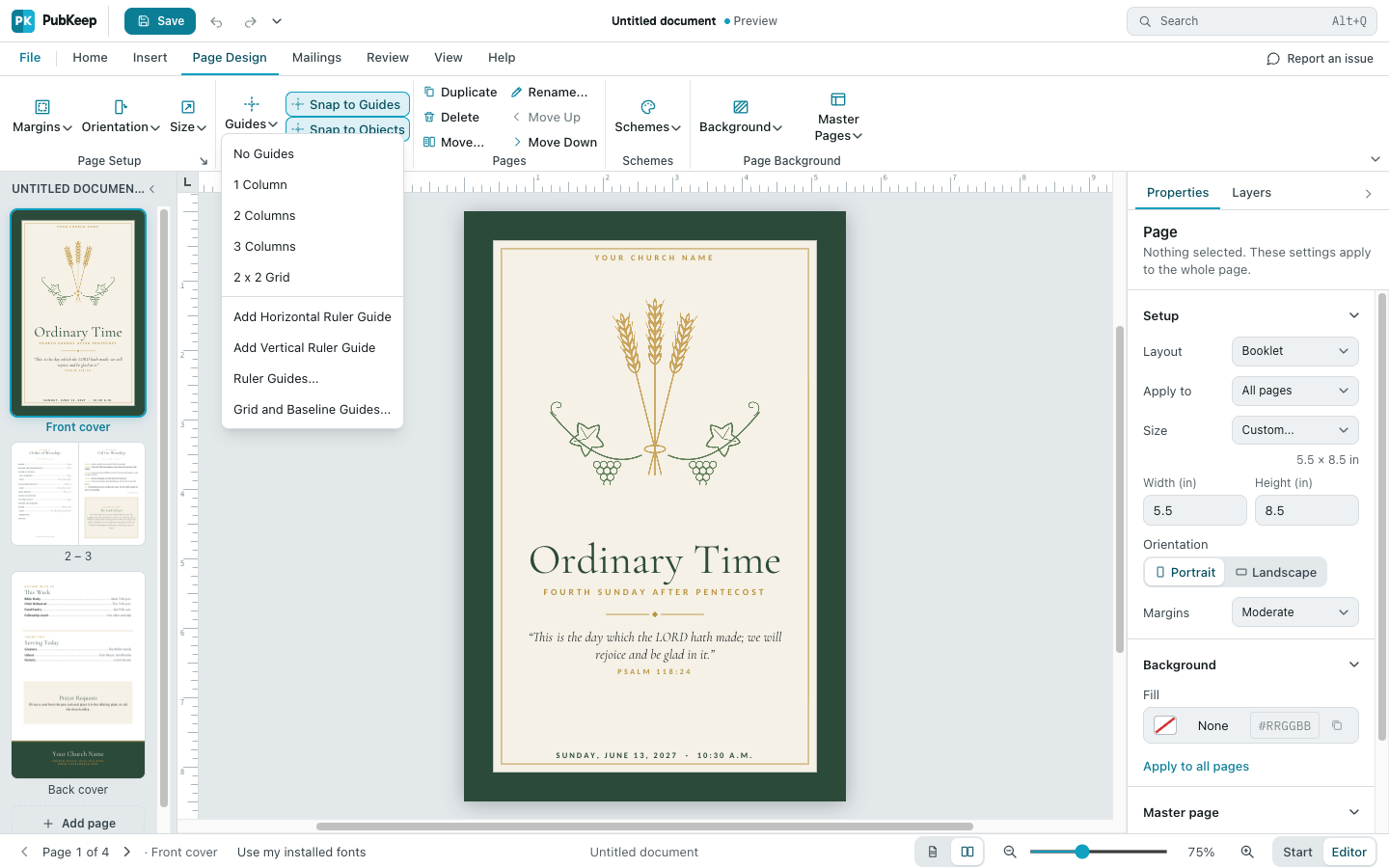
For your own number of rows and columns, choose Guides > Grid and Baseline Guides instead.
Add a ruler guide
Section titled “Add a ruler guide”- Make sure the rulers are showing (View > Rulers).
- Point at the ruler across the top of the page, then drag down onto the page to make a horizontal guide. Drag from the ruler on the left to make a vertical guide.
- Let go where you want the guide.
You can also use Page Design > Guides > Add Horizontal Ruler Guide or Add Vertical Ruler Guide, which puts one across the middle of the page. Ruler Guides lets you type exact positions.
To move a guide, drag it. To delete one, drag it off the page.
Turn snapping on or off
Section titled “Turn snapping on or off”Snapping pulls an object into line when you drag it close to a guide or another object.
- Click the Page Design tab.
- In the Layout group, click Snap to Guides to snap to margin, grid and ruler guides.
- Click Snap to Objects to snap to the edges and centers of the page and other objects.
Each button is highlighted while it’s on. Click it again to turn it off.
Change the ruler units
Section titled “Change the ruler units”- Click the File tab, then click Options.
- Click Advanced.
- Next to Show measurements in units of:, choose Inches, Centimeters, Millimeters, Points or Picas.
- Click OK.
If it still looks wrong
Section titled “If it still looks wrong”Things jump when I try to place them exactly
Section titled “Things jump when I try to place them exactly”That’s snapping. Turn off Snap to Guides and Snap to Objects, then drag again.
I can’t see the guides I added
Section titled “I can’t see the guides I added”Check that View > Guides is checked.